
The Calendar widget in PyGTK toolkit displays a simple calendar with one month view at a time. The navigation controls to change month and year are displayed by default. The display options can be suitably configured.
The value of month property is between 0 to 11, and that of date property is between 1 to 31.
There is a simple constructor to create a gtk.Calendar object −
The gtk.Calendar class has the following methods −
In the following example, a gtk.Calendar control and four buttons are placed in the toplevel window.
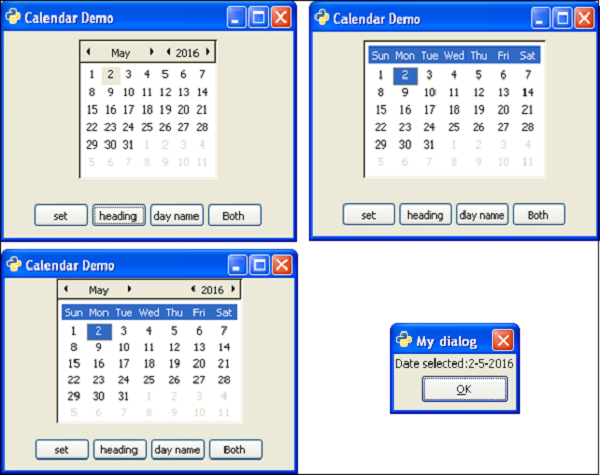
When the 'heading' button is clicked, the Calendar's display options are set to SHOW_HEADING −
The value of month property is between 0 to 11, and that of date property is between 1 to 31.
There is a simple constructor to create a gtk.Calendar object −
cal = gtk.Calendar()The default display style shows the current month and year as well as names of days.
The gtk.Calendar class has the following methods −
- Calendar.select_month(mm,yy) — This changes the calendar display to the specified mm and yy.
- Calendar.select_day(dd) — This selects the specified dd on the calendar when it has a value between 1 and 31. If dd is 0 then the current day selection is removed.
- Calendar.display_options() — This sets the calendar display options to the value specified by flags. The possible display options are a combination of:
| gtk.CALENDAR_SHOW_HEADING | Specifies that the month and year should be displayed. |
| gtk.CALENDAR_SHOW_DAY_NAMES | Specifies that three letter day descriptions should be present. |
| gtk.CALENDAR_NO_MONTH_CHANGE | Prevents the user from switching months with the calendar. |
| gtk.CALENDAR_SHOW_WEEK_NUMBERS | Displays each week numbers of the current year, down the left side of the calendar. |
| gtk.CALENDAR_WEEK_START_MONDAY | Starts the calendar week on Monday, instead of the default Sunday. |
- Calendar.get_date() — This retrieves the calendar's current year, month and selected day numbers as a tuple (year, month, day).
| day-selected | This is emitted when a day is selected either by the user or programmatically. |
| month-changed | This is emitted when the calendar month is changed programmatically or by the user. |
| next-month | This is emitted when the user clicks the "next-month" navigation control in the calendar header. |
| next-year | This is emitted when the user clicks the "next-year" navigation control in the calendar header. |
| prev-month | This is emitted when the user clicks the "prev-month" navigation control in the calendar header. |
| prev-year | This is emitted when the user clicks the "prev-year" navigation control in the calendar header. |
When the 'heading' button is clicked, the Calendar's display options are set to SHOW_HEADING −
def heading(self, widget):
   self.cal.set_display_options(gtk.CALENDAR_SHOW_HEADING)
When the user clicks the 'day name' button, the callback sets display options to SHOW_DAY_NAMES −
def dayname(self, widget):
self.cal.set_display_options(gtk.CALENDAR_SHOW_DAY_NAMES)
Both the display options are enabled when 'both' button is pressed. To begin with, all flags of display options are removed by setting it to 0.
self.cal.set_display_options(0)The 'set' button pops up a message box displaying the currently marked date.
tp = self.cal.get_date()
str1 = str(tp[0])
str2 = str(tp[1]+1)
str3 = str(tp[2])
label = gtk.Label("Date selected:"+str3+"-"+str2+"-"+str1)
dialog.vbox.add(label)
label.show()
Example
Observe the following code −import gtk class PyApp(gtk.Window): def __init__(self): super(PyApp, self).__init__() self.set_title("Calendar Demo") self.set_size_request(300, 200) self.set_position(gtk.WIN_POS_CENTER) vbox = gtk.VBox(False, 5) self.cal = gtk.Calendar() halign1 = gtk.Alignment(0.5, 0.5, 0, 0) halign1.add(self.cal) self.cal.set_display_options(0) valign = gtk.Alignment(0, 1, 0, 0) vbox.pack_start(halign1) self.btn1 = gtk.Button("set") self.btn2 = gtk.Button("heading") self.btn3 = gtk.Button("day name") self.btn4 = gtk.Button("Both") hbox = gtk.HBox(True, 3) hbox.add(self.btn1) hbox.add(self.btn2) hbox.add(self.btn3) hbox.add(self.btn4) halign = gtk.Alignment(0.5, 0.5, 0, 0) halign.add(hbox) vbox.pack_start(halign, False, True, 10) self.add(vbox) self.btn1.connect("clicked", self.selectdate) self.btn2.connect("clicked", self.heading) self.btn3.connect("clicked", self.dayname) self.btn4.connect("clicked", self.bothflags) self.connect("destroy", gtk.main_quit) self.show_all() def heading(self, widget): self.cal.set_display_options(gtk.CALENDAR_SHOW_HEADING) def dayname(self, widget): self.cal.set_display_options(gtk.CALENDAR_SHOW_DAY_NAMES) def bothflags(self, widget): self.cal.set_display_options(gtk.CALENDAR_SHOW_HEADING|gtk.CALENDAR_SHOW_DAY_NAMES) def selectdate(self, widget): tp = self.cal.get_date() dialog = gtk.Dialog("My dialog", self, gtk.DIALOG_MODAL | gtk.DIALOG_DESTROY_WITH_PARENT, (gtk.STOCK_OK, gtk.RESPONSE_ACCEPT)) str1 = str(tp[0]) str2 = str(tp[1]+1) str3 = str(tp[2]) label = gtk.Label("Date selected:"+str3+"-"+str2+"-"+str1) dialog.vbox.add(label) label.show() res = dialog.run() dialog.destroy() PyApp() gtk.main()The above code will generate the following output −


No comments:
Post a Comment