The Groovy shell known as groovysh can be easily used to evaluate
groovy expressions, define classes and run simple programs. The command
line shell gets installed when Groovy is installed.
Following are the command line options available in Groovy −
| Command line parameter |
Full Name |
Details |
| -C |
--color[=FLAG] |
Enable or disable use of ANSI colors |
| -D |
--define=NAME=VALUE |
Define a system property |
| -T |
--terminal=TYPE |
Specify the terminal TYPE to use |
| -V |
--version |
Display the version |
| -classpath |
|
Specify where to find the class files – must be the first argument |
| -cp |
--classpath |
Aliases for '-classpath' |
| -d |
--debug |
--debug Enable debug output |
| -e |
--evaluate=arg |
Evaluate option fist when starting interactive session |
| -h |
--help |
Display this help message |
| -q |
--quiet |
Suppress superfluous output |
| -v |
--verbose |
Enable verbose output |
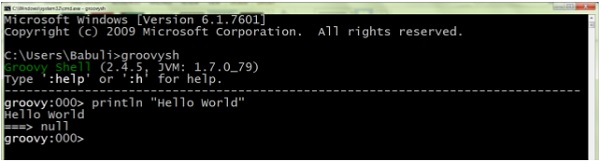
The following snapshot shows a simple example of an expression being
executed in the Groovy shell. In the following example we are just
printing “Hello World” in the groovy shell.
Classes and Functions
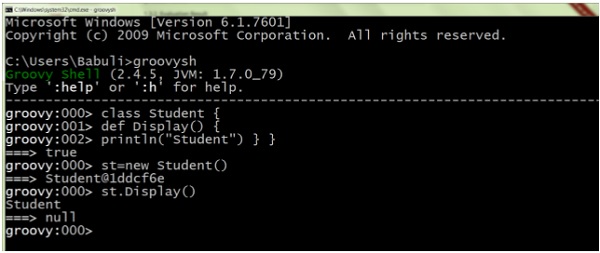
It is very easy to define a class in the command prompt, create a new
object and invoke a method on the class. The following example shows
how this can be implemented. In the following example, we are creating a
simple Student class with a simple method. In the command prompt
itself, we are creating an object of the class and calling the Display
method.
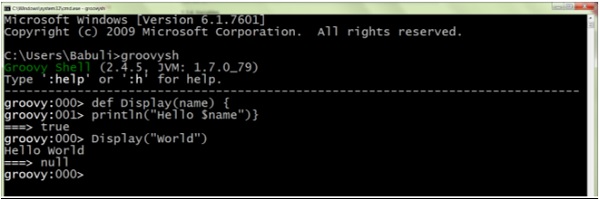
It is very easy to define a method in the command prompt and invoke
the method. Note that the method is defined using the def type. Also
note that we have included a parameter called name which then gets
substituted with the actual value when the Display method is called. The
following example shows how this can be implemented.
Commands
The shell has a number of different commands, which provide rich
access to the shell’s environment. Following is the list of them and
what they do.
| Command |
Command Description |
| :help |
(:h ) Display this help message |
| ? |
(:? ) Alias to: :help |
| :exit |
(:x ) Exit the shell |
| :quit |
(:q ) Alias to: :exit |
| import |
(:i ) Import a class into the namespace |
| :display |
(:d ) Display the current buffer |
| :clear |
(:c ) Clear the buffer and reset the prompt counter |
| :show |
(:S ) Show variables, classes or imports |
| :inspect |
(:n ) Inspect a variable or the last result with the GUI object browser |
| :purge |
(:p ) Purge variables, classes, imports or preferences |
| :edit |
(:e ) Edit the current buffer |
| :load |
(:l ) Load a file or URL into the buffer |
| . |
(:. ) Alias to: :load |
| .save |
(:s ) Save the current buffer to a file |
| .record |
(:r ) Record the current session to a file |
| :alias |
(:a ) Create an alias |
| :set |
(:= ) Set (or list) preferences |
| :register |
(:rc) Registers a new command with the shell |
| :doc |
(:D ) Opens a browser window displaying the doc for the argument |
| :history |
(:H ) Display, manage and recall edit-line history |


No comments:
Post a Comment