
This chapter discusses about Bootstrap thumbnails. A lot of sites
need a way to lay out images, videos, text, etc, in a grid, and
Bootstrap has an easy way to do this with thumbnails. To create
thumbnails using Bootstrap −

- Add an <a> tag with the class of .thumbnail around an image.
- This adds four pixels of padding and a gray border.
- On hover, an animated glow outlines the image.
<div class = "row">

   <div class = "col-sm-6 col-md-3">
      <a href = "#" class = "thumbnail">
         <img src = "/bootstrap/images/kittens.jpg" alt = "Generic placeholder thumbnail">
      </a>
   </div>

   <div class = "col-sm-6 col-md-3">
      <a href = "#" class = "thumbnail">
         <img src = "/bootstrap/images/kittens.jpg" alt = "Generic placeholder thumbnail">
      </a>
   </div>

   <div class = "col-sm-6 col-md-3">
      <a href = "#" class = "thumbnail">
         <img src = "/bootstrap/images/kittens.jpg" alt = "Generic placeholder thumbnail">
      </a>
   </div>

   <div class = "col-sm-6 col-md-3">
      <a href = "#" class = "thumbnail">
         <img src = "/bootstrap/images/kittens.jpg" alt = "Generic placeholder thumbnail">
      </a>
   </div>

</div>
Adding Custom Content
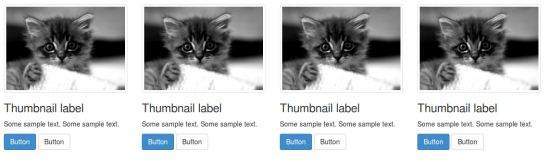
Now that we have a basic thumbnail, it's possible to add any kind of HTML content like headings, paragraphs, or buttons into thumbnails. Follow the steps below −- Change the <a> tag that has a class of .thumbnail to a <div>.
- Inside of that <div>, you can add anything you need. As this is a <div>, we can use the default span-based naming convention for sizing.
- If you want to group multiple images, place them in an unordered list, and each list item will be floated to the left.
<div class = "row">

   <div class = "col-sm-6 col-md-3">
      <div class = "thumbnail">
         <img src = "/bootstrap/images/kittens.jpg" alt = "Generic placeholder thumbnail">
      </div>

      <div class = "caption">
         <h3>Thumbnail label</h3>
         <p>Some sample text. Some sample text.</p>

         <p>
            <a href = "#" class = "btn btn-primary" role = "button">
               Button
            </a>

            <a href = "#" class = "btn btn-default" role = "button">
               Button
            </a>
         </p>

      </div>
   </div>

   <div class = "col-sm-6 col-md-3">
      <div class = "thumbnail">
         <img src = "/bootstrap/images/kittens.jpg" alt = "Generic placeholder thumbnail">
      </div>

      <div class = "caption">
         <h3>Thumbnail label</h3>
         <p>Some sample text. Some sample text.</p>

         <p>
            <a href = "#" class = "btn btn-primary" role = "button">
               Button
            </a>

            <a href = "#" class = "btn btn-default" role = "button">
               Button
            </a>
         </p>

      </div>
   </div>

   <div class = "col-sm-6 col-md-3">
      <div class = "thumbnail">
         <img src = "/bootstrap/images/kittens.jpg" alt = "Generic placeholder thumbnail">
      </div>

      <div class = "caption">
         <h3>Thumbnail label</h3>
         <p>Some sample text. Some sample text.</p>

         <p>
            <a href = "#" class = "btn btn-primary" role = "button">
               Button
            </a>

            <a href = "#" class = "btn btn-default" role =" button">
               Button
            </a>
         </p>

      </div>
   </div>

   <div class = "col-sm-6 col-md-3">
      <div class = "thumbnail">
         <img src = "/bootstrap/images/kittens.jpg" alt = "Generic placeholder thumbnail">
      </div>

      <div class = "caption">
         <h3>Thumbnail label</h3>
         <p>Some sample text. Some sample text.</p>

         <p>
            <a href = "#" class = "btn btn-primary" role = "button">
               Button
            </a>

            <a href = "#" class = "btn btn-default" role = "button">
               Button
            </a>
         </p>

      </div>
   </div>

</div>


No comments:
Post a Comment