
The writing settings controls the writing experience and provides
options for customizing WordPress site. These settings control the
features in the adding and editing posts, Pages, and Post Types, as well
as the optional functions like Remote Publishing, Post via e-mail, and
Update Services.
Following are the steps to access the writing settings −
Step (1) − To change writing settings, go to Settings → Writing option.
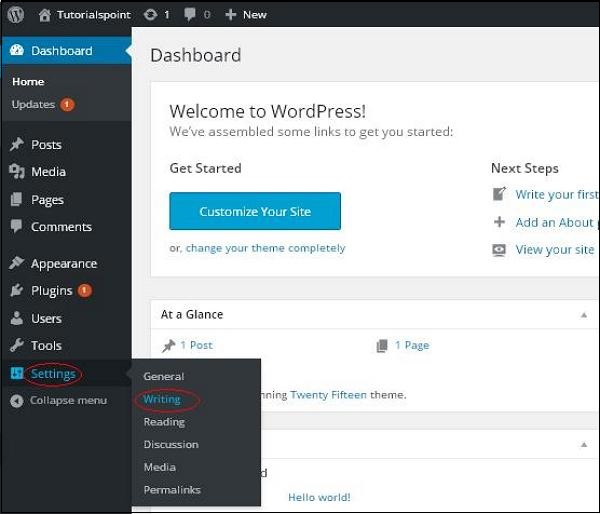 Step (2) − The Writing Setting page is displayed as shown in the following screen.
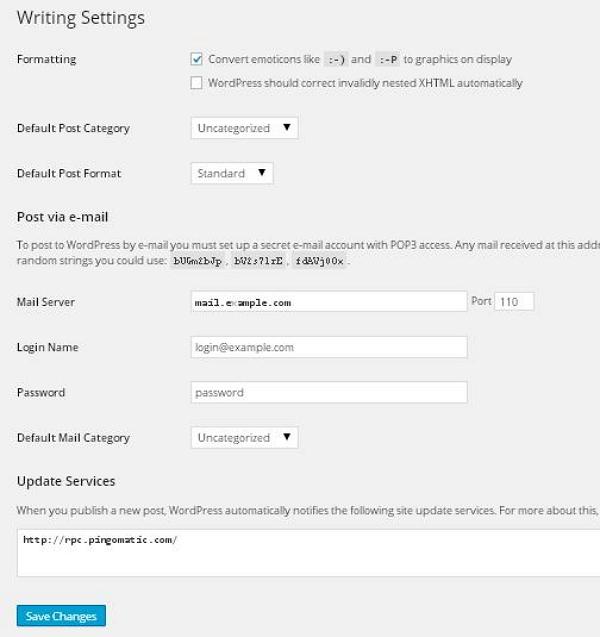 Following are the details of the fields on the page.
Following are the steps to access the writing settings −
Step (1) − To change writing settings, go to Settings → Writing option.
Step (2) − The Writing Setting page is displayed as shown in the following screen.
Following are the details of the fields on the page.- Formatting − This field defines two sub options for better user experience.
- The first option Convert emoticons like :-) and :-P to graphics on display will turn text-based emoticons into graphic-based emoticons.
- The second option WordPress should correct invalidly nested XHTML automatically corrects the invalid XHTML placed within the posts or pages.
- Default Post Category − It is a category to be applied to a post and you can leave it as Uncategorized.
- Default Post Format − It is used by themes to select post format to be applied to a post or create different styles for different types of posts.
- Post via e-mail − This option uses e-mail address to create posts and publishes posts on your blog through e-mail. To use this, you'll need to set up a secret e-mail account with a POP3 access, and any mail received at this address will be posted.
- Mail Server − It allows reading the e-mails that you send to WordPress and stores them for retrieval. For this, you need to have POP3 compatible mail server and it will have URI address such as mail.example.com, which you should enter here.
- Login Name − To create posts, WordPress will need its own e-mail account. The Login Name will use this e-mail address and should be kept as a secret as spammers will post links redirecting to their own websites.
- Password − Set password for the above e-mail address.
- Default Mail Category − It allows selecting custom category for all the posts that are published via Post by e-mail feature.
- Update Services − When you publish a new post, WordPress will automatically notify the site update services in the box. See the Update Services on the codex for the long list of possible services.


No comments:
Post a Comment