
In this chapter, we will study about background images, background colors and background opacity.
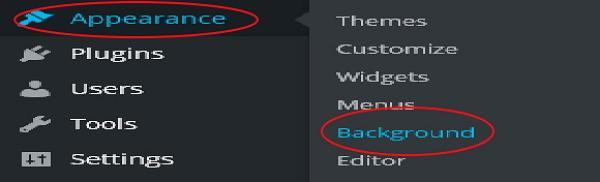
Step (1) − Click on Appearance → Background.
 Step (2) − The following page appears where the Background Image section shows up.
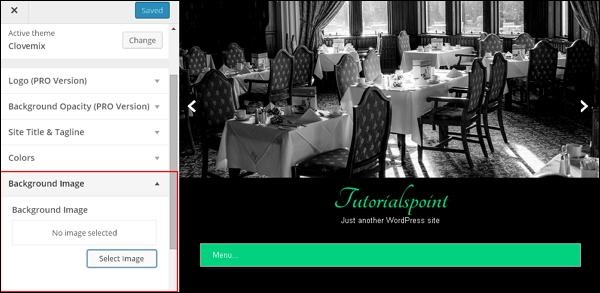 Step (3) − There’s no image selected for background. If you want to do so, then click on Select Image. You get the following page.
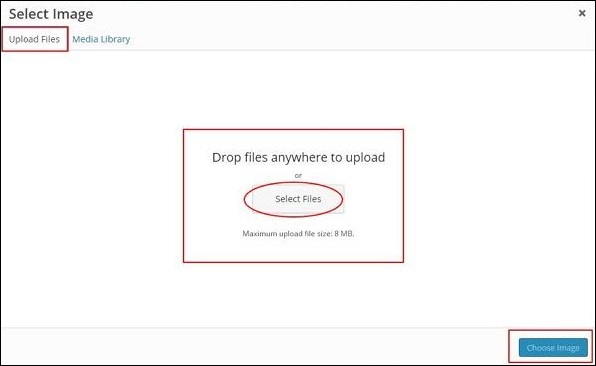
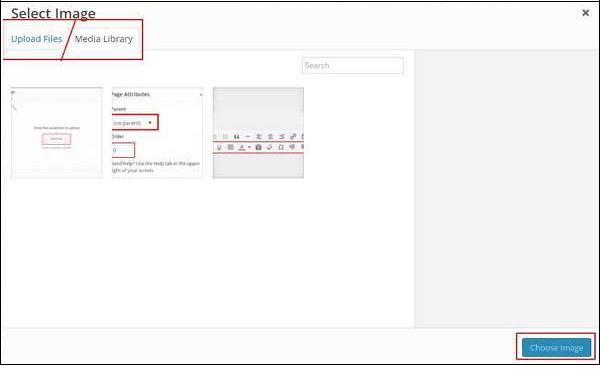 Here you can upload images using two options.
 Step (5) − Media Library − When you click on Media
Library the following page appears. Select files from the WordPress
media library, which means, if you already have images updated then you
can select any of them directly.
Step (5) − Media Library − When you click on Media
Library the following page appears. Select files from the WordPress
media library, which means, if you already have images updated then you
can select any of them directly.
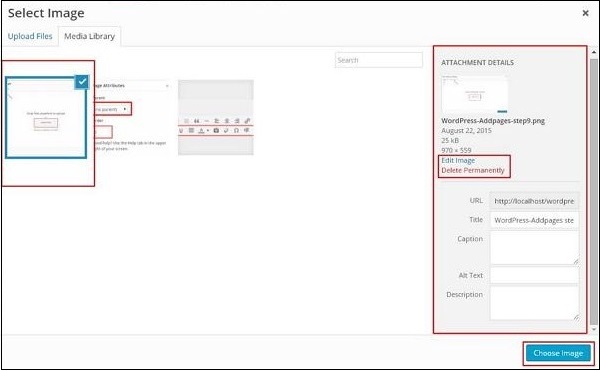 After selecting an image, on the right side you will get a few options −
Step (1) − Click on Appearance → Background.
Step (2) − The following page appears where the Background Image section shows up.
Step (3) − There’s no image selected for background. If you want to do so, then click on Select Image. You get the following page.
Here you can upload images using two options.- Upload Files
- Media Library
Step (5) − Media Library − When you click on Media
Library the following page appears. Select files from the WordPress
media library, which means, if you already have images updated then you
can select any of them directly.
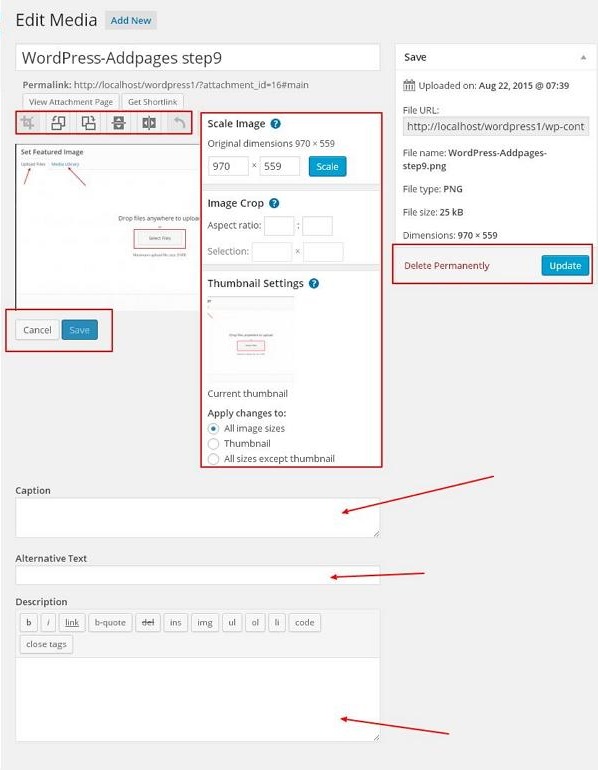
After selecting an image, on the right side you will get a few options −- Edit Image − When you click on this you are taken to another page where you can edit the scale image, dimensions, crop image, and thumbnail settings, etc. As shown in the following image, make the required changes, click on Save and then click on Update.
- Delete Permanently − If you want your image off the library then click on this button.
- URL − Enter your image URL into this box.
- Title − If you want to make any changes in the title of the image you can do it right here.
- Caption − You can explain briefly about your image in this section.
- Alt text − Give an alternative text to your image so that it is easily available for the users during search.
- Description − A little description about your image.


No comments:
Post a Comment