
Instead of writing CSS or JS code, developers often use extended syntax, like LESS, SCSS, Stylus for CSS and TypeScript, CoffeeScript for JS. Then they use special tools to convert these files into real CSS and JS.
The asset manager in Yii converts assets in extended syntax into CSS and JS, automatically. When the view is rendered, it will include the CSS and JS files in the page, instead of the original assets in extended syntax.
Step 1 − Modify the DemoAsset.php file this way.
Step 2 − Inside the web/js directory, create a file called greeting.ts with the following code.
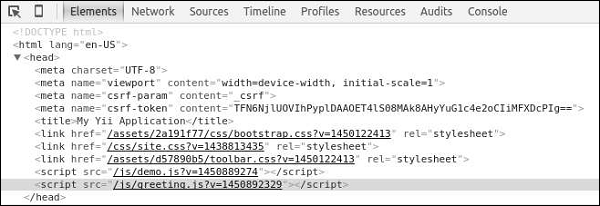
Step 3 − Go to the URL http://localhost:8080/index.php. You will notice that the greeting.ts file is converted into the greeting.js file as shown in the following screenshot.
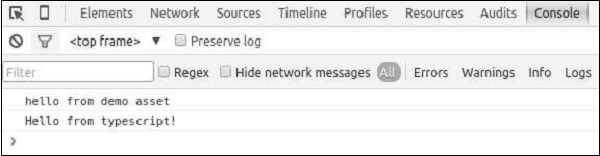
 Following will be the output.
The asset manager in Yii converts assets in extended syntax into CSS and JS, automatically. When the view is rendered, it will include the CSS and JS files in the page, instead of the original assets in extended syntax.
Step 1 − Modify the DemoAsset.php file this way.
<?php
   namespace app\assets;
   use yii\web\AssetBundle;
   use yii\web\View;
   class DemoAsset extends AssetBundle {
      public $basePath = '@webroot';
      public $baseUrl = '@web';
      public $js = [
         'js/demo.js',
         'js/greeting.ts'
      ];
      public  $jsOptions = ['position' => View::POS_HEAD];
   }
?>
We have just added a typescript file.
Step 2 − Inside the web/js directory, create a file called greeting.ts with the following code.
class Greeter {
   constructor(public greeting: string) { }
   greet() {
      return this.greeting;
   }
};
var greeter = new Greeter("Hello from typescript!");
console.log(greeter.greet());
In the above code, we define a Greeter class with a single method greet(). We write our greeting to the chrome console.
Step 3 − Go to the URL http://localhost:8080/index.php. You will notice that the greeting.ts file is converted into the greeting.js file as shown in the following screenshot.
Following will be the output.

No comments:
Post a Comment