
In this chapter, we will study to Edit Tags in WordPress. You can learn how to add tags in the chapter WordPress - Add Tags.
Following are the simple steps to Edit Tags in WordPress.
Step (1) − Click on Posts → Tags in WordPress.
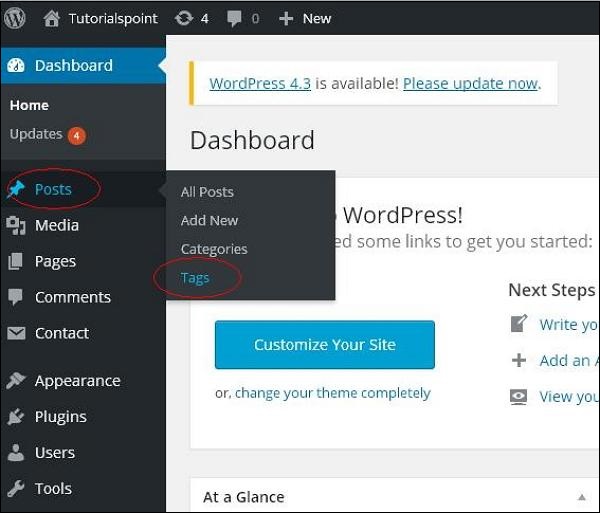 Step (2) − You can view tag Food around the world (Food around the world was created in the chapter Wordpress - Add Tags). When the cursor hovers on the Tags, then a few options get displayed below the Tag name. There are two ways to edit the tags i.e. Edit and Quick Edit
Edit − Click on Edit option in Tags section as shown in the following screen.
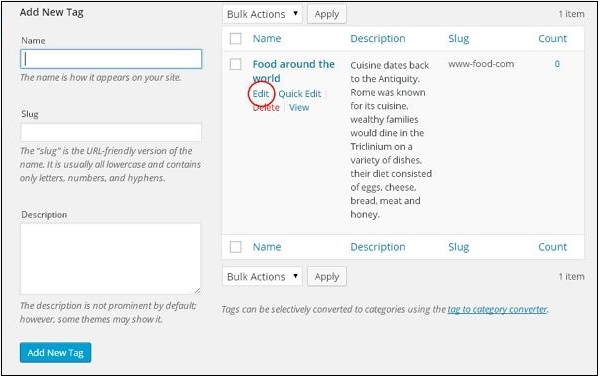 You can edit any of the required field, and then click on Update button as shown in the following screen.
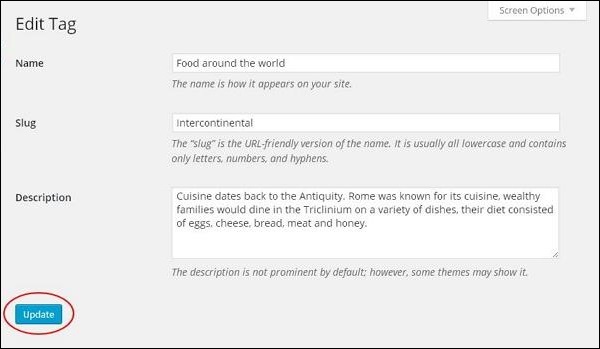 Here tag fields are same from the chapter WordPress - Add Tags.
Quick Edit − Click on Quick Edit option in Tags section as shown in the following screenshot.
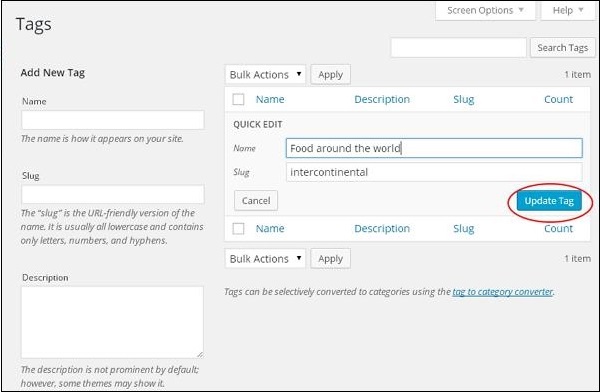
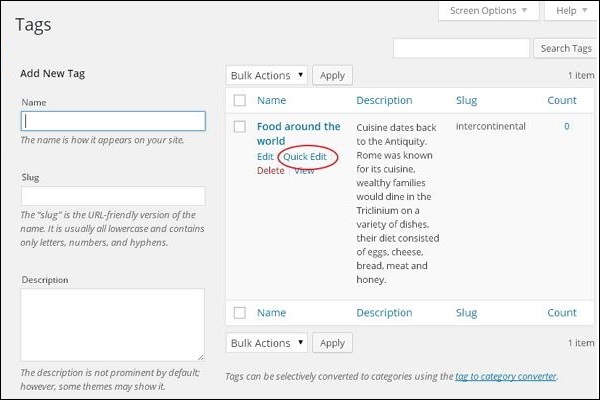 Here you can only edit the Name and Slug of the Tags as seen in the following screen and then click on Update Tag button.
Following are the simple steps to Edit Tags in WordPress.
Step (1) − Click on Posts → Tags in WordPress.
Step (2) − You can view tag Food around the world (Food around the world was created in the chapter Wordpress - Add Tags). When the cursor hovers on the Tags, then a few options get displayed below the Tag name. There are two ways to edit the tags i.e. Edit and Quick EditEdit − Click on Edit option in Tags section as shown in the following screen.
You can edit any of the required field, and then click on Update button as shown in the following screen.
Here tag fields are same from the chapter WordPress - Add Tags.Quick Edit − Click on Quick Edit option in Tags section as shown in the following screenshot.
Here you can only edit the Name and Slug of the Tags as seen in the following screen and then click on Update Tag button.

No comments:
Post a Comment