
In this chapter, we will learn to Add Links in WordPress pages. Link is a connection from one resource to another. Adding links to your pages or blog posts help you to connect to other pages.
Following are the simple steps to Add links in WordPress.
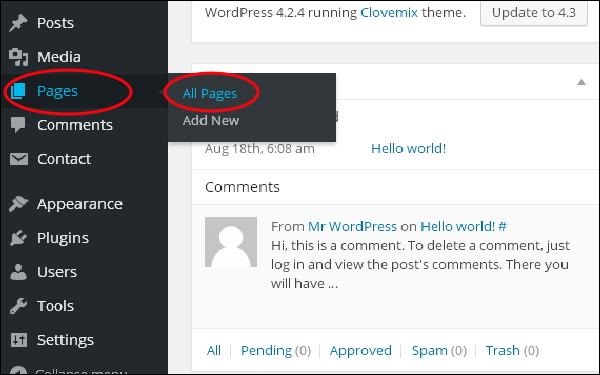
Step (1) − Click on Pages → All Pages in WordPress.
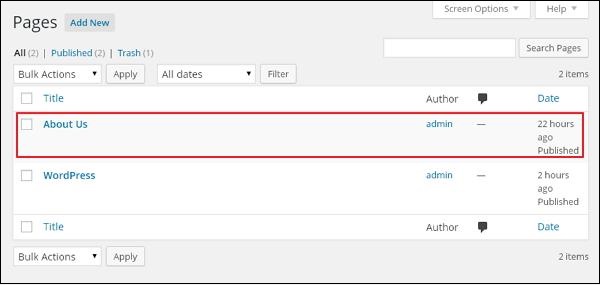
 Step (2) − List of pages created in WordPress will get displayed as shown in the following screen. Select any of the pages to add links inside it. Here, we are going to add links in About Us page.
 Step (3) − Select any of the sentence or word where you want to add link. Here, we will add link to the word Lorem.
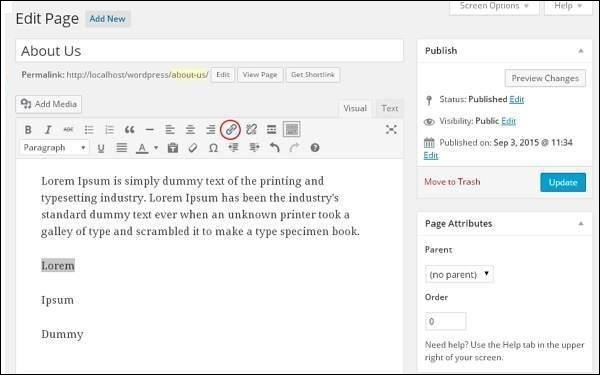 Step (4) − When you click on the Insert/Edit link symbol then the following pop window gets displayed.
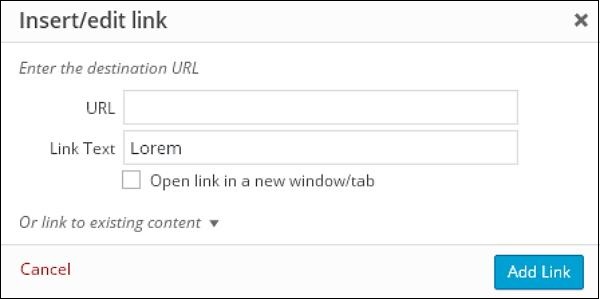 Following are the fields present in the Insert/edit link.
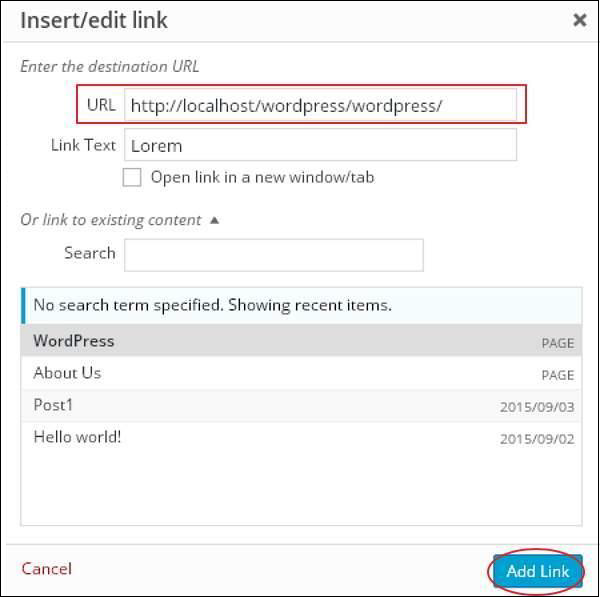 After selecting the particular page or post from the list, the links get created in the URL field as seen in the preceding screen. Click on Add Link.
Step (5) − When you hover on the word Lorem then the link tooltip gets displayed as shown in the following screen.
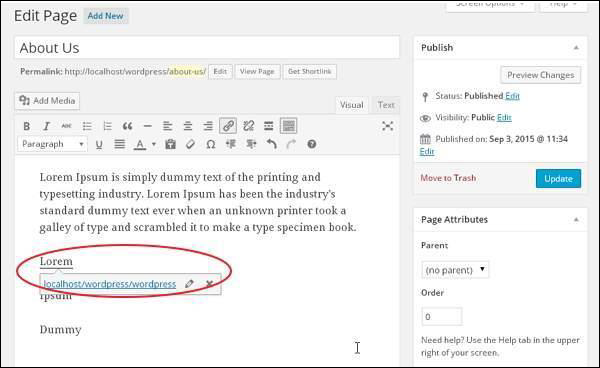 Click on Update button to update the changes in your page or post.
Following are the simple steps to Add links in WordPress.
Step (1) − Click on Pages → All Pages in WordPress.
Step (2) − List of pages created in WordPress will get displayed as shown in the following screen. Select any of the pages to add links inside it. Here, we are going to add links in About Us page.
Step (3) − Select any of the sentence or word where you want to add link. Here, we will add link to the word Lorem.
Step (4) − When you click on the Insert/Edit link symbol then the following pop window gets displayed.
Following are the fields present in the Insert/edit link.- URL − Enter URL you want to link.
- Link text − Insert text you want to enter into the link.
- Open link in a new window/tab − Open your link page into the new tab or window. Check the box as required.
- Or link to existing account − Add links to an existing content page by selecting the page from the given list. Click on Or link to existing account and the list of pages and posts gets displayed as shown in the following screen.
After selecting the particular page or post from the list, the links get created in the URL field as seen in the preceding screen. Click on Add Link.Step (5) − When you hover on the word Lorem then the link tooltip gets displayed as shown in the following screen.
Click on Update button to update the changes in your page or post.

No comments:
Post a Comment