
In this chapter, we will learn how to reset your passwords in
WordPress. We have two methods of resetting passwords in WordPress −
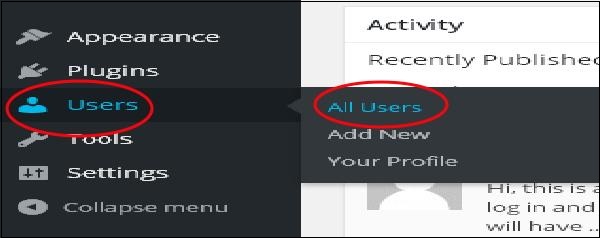
Step (1) − Login to your wordPress admin panel and click on Users → All Users from the dashboard.
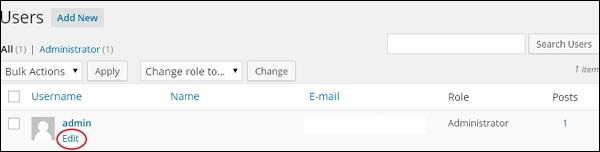
 Step (2) − When you click on All Users you get a page with a list of users. From this select the one you want to reset password of and click on edit.
 When you click on edit, the following page gets displayed.
 Now let's look into resetting your password using Lost your password section.
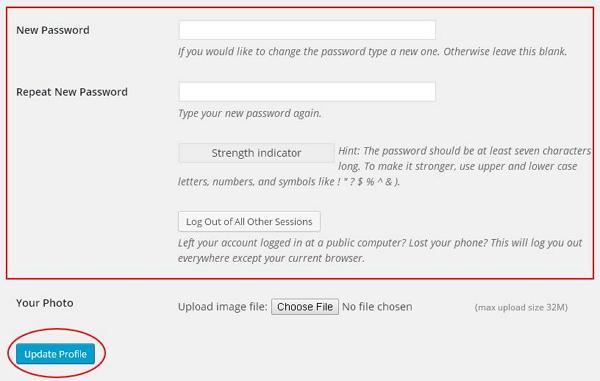
Step (3) − In this page you can type in your new password that must contain 7 characters. Once you are done with setting your new password click on Update Profile.
Step (3.1) − When you try logging into your WordPress admin panel, you forget your password and need to reset it, you get the following message on the page.
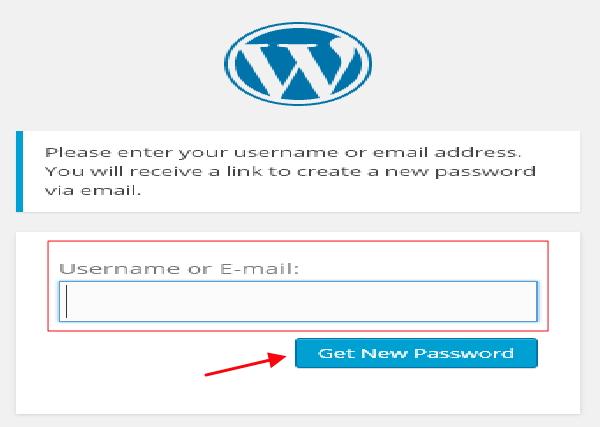
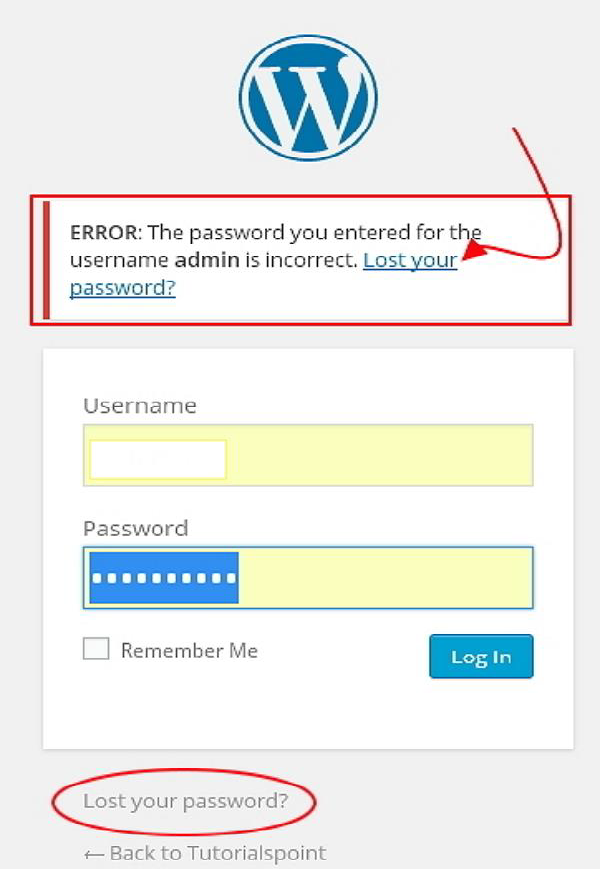 Step (3.2) − Click on Lost your password? The following page appears. Update your e-mail and say Get New Password.
 Step (3.3) − After you click, you get a message saying a Link has been sent to the e-mail address you provided.
Step (3.4) − Go to your e-mail and open the (Wordpress Site) Password Reset mail and click on the link that is provided.
Step (3.5) − Type your new password, confirm again if required and then click on Reset Password.
- User
- Lost your password
Step (1) − Login to your wordPress admin panel and click on Users → All Users from the dashboard.
Step (2) − When you click on All Users you get a page with a list of users. From this select the one you want to reset password of and click on edit.
When you click on edit, the following page gets displayed.
Now let's look into resetting your password using Lost your password section.Step (3) − In this page you can type in your new password that must contain 7 characters. Once you are done with setting your new password click on Update Profile.
Step (3.1) − When you try logging into your WordPress admin panel, you forget your password and need to reset it, you get the following message on the page.
Step (3.2) − Click on Lost your password? The following page appears. Update your e-mail and say Get New Password.
Step (3.3) − After you click, you get a message saying a Link has been sent to the e-mail address you provided.Step (3.4) − Go to your e-mail and open the (Wordpress Site) Password Reset mail and click on the link that is provided.
Step (3.5) − Type your new password, confirm again if required and then click on Reset Password.


No comments:
Post a Comment