
In this chapter, we will study how to Preview Posts in WordPress. Preview Post is to view the post before it is published to the user. It is safer to preview your post and verify how your post looks on the website. You can edit or change the post as per your need after previewing.
Following are the simple steps to Preview Posts in WordPress.
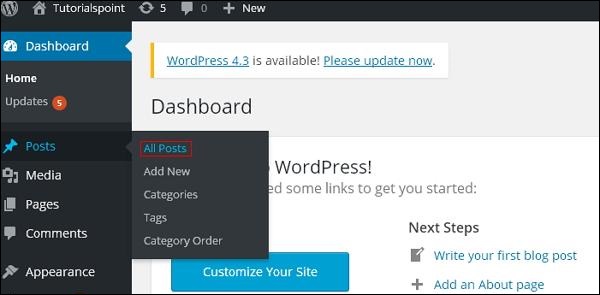
Step (1) − Click on Posts → All Posts in wordPress.
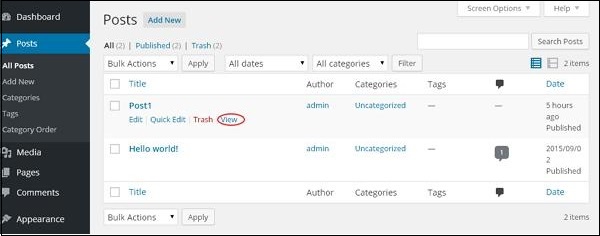
 Step (2) − You can view Post1 (Post1 was created in the chapter Wordpress - Add Posts). When the cursor hovers on the Post, then a few options get displayed below the Post name. Click on the View option as shown in the following screenshot.
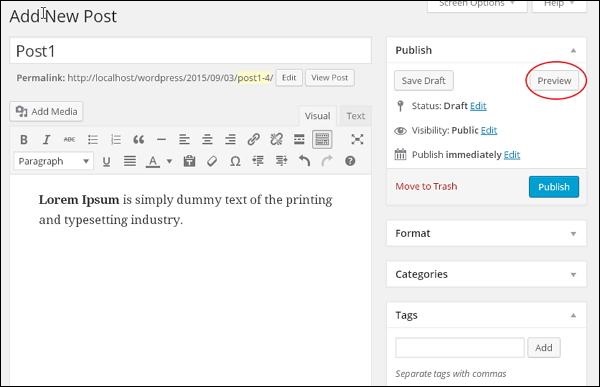
 Or else you can view your post directly while editing or adding post by clicking on the Preview button as shown in the following screen.
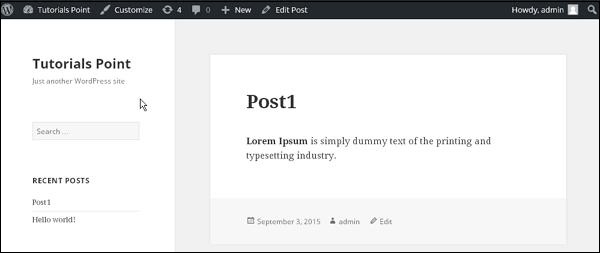
 Step (3) − You can view your post, when you click on View or Preview.
Following are the simple steps to Preview Posts in WordPress.
Step (1) − Click on Posts → All Posts in wordPress.
Step (2) − You can view Post1 (Post1 was created in the chapter Wordpress - Add Posts). When the cursor hovers on the Post, then a few options get displayed below the Post name. Click on the View option as shown in the following screenshot.
Or else you can view your post directly while editing or adding post by clicking on the Preview button as shown in the following screen.
Step (3) − You can view your post, when you click on View or Preview.

No comments:
Post a Comment