
In this chapter, we will study how to Edit Media in wordPress. You can manage all the information about your media that is saved in the Media Library.
Following are the steps to Edit Media in WordPress.
Step (1) − Click on Media → Library and click on the name of the media item or the edit link.
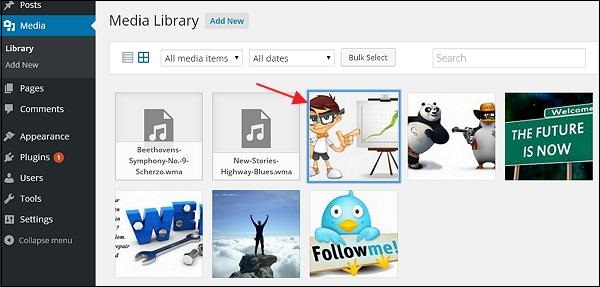
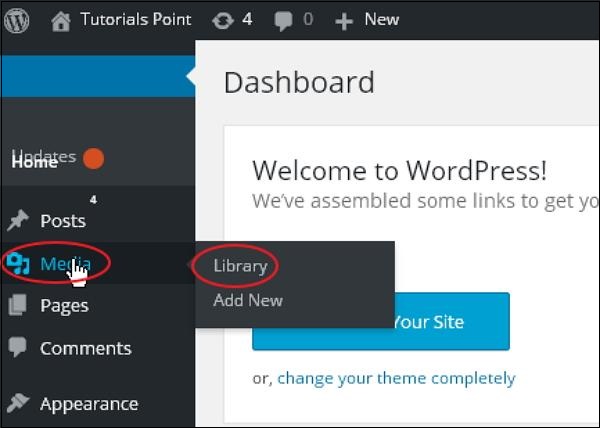 Step (2) − You will view a list of media files. Select any one image to edit.
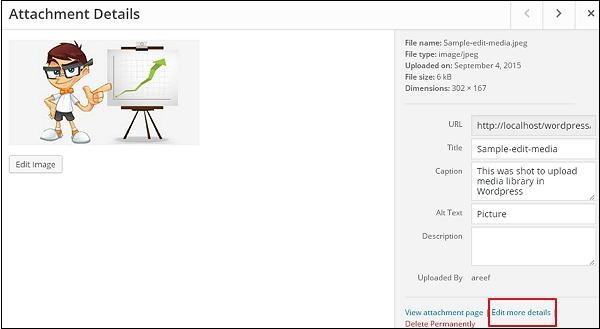
 Step (3) − You can view the edit media page with few options on the right side.
Following are the steps to Edit Media in WordPress.
Step (1) − Click on Media → Library and click on the name of the media item or the edit link.
Step (2) − You will view a list of media files. Select any one image to edit.
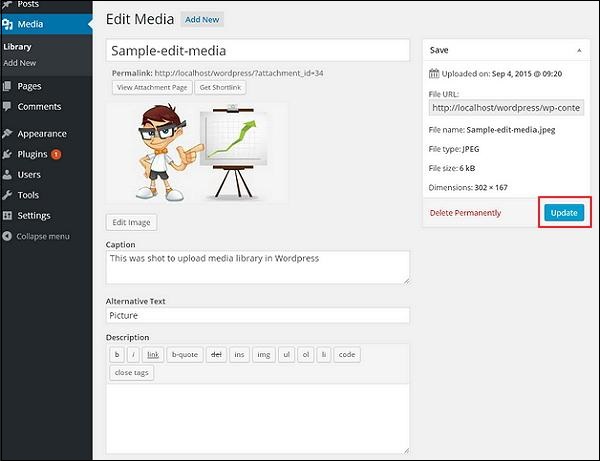
Step (3) − You can view the edit media page with few options on the right side.
- URL − You can read only a link from media file.
- Title − This displays the name of the media. Title is often shown in galleries and attachment pages, if themes or plugins are designed to display it.
- Permalink − Permalink is the URL of the media attachment page. This is also a link to view the attachment page.
- Edit image button − This allows you to edit the image position, such as rotate counter-clockwise, rotate clockwise, scale, crop, flip vertically, and flip horizontally.
- Caption − A brief explanation of the media.
- Alternate Text − The alt text for the image, which is used to describe media. Used for availability.
- Description − An explanation of your media file.
- Delete Permanently − Delete your media file permanently.


No comments:
Post a Comment