
In this chapter, we will learn to Add Comments in WordPress.
Adding comments allows your visitors to have a discussion with you.
Comments are approved by the admin and then posted to be discussed
further.
Following are the steps to add comments to your blog posts.
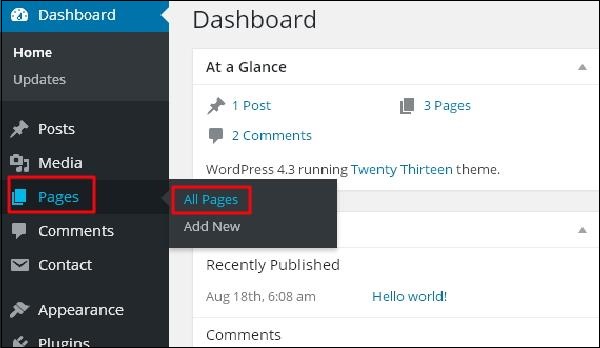
Step (1) − Click on Pages → All Pages in WordPress.
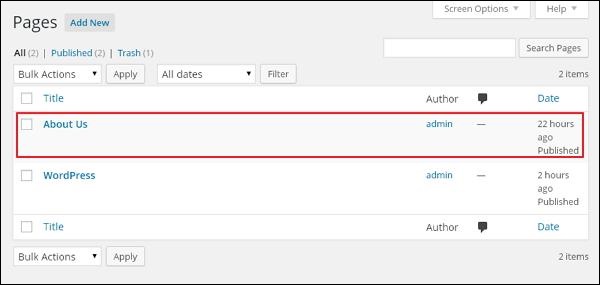
 Step (2) − The list of pages created in WordPress will get
displayed as seen in the following screen. Select any of the pages you
want to add comments to. Here, we are going to add comment in About Us page. Click on About Us.
Step (2) − The list of pages created in WordPress will get
displayed as seen in the following screen. Select any of the pages you
want to add comments to. Here, we are going to add comment in About Us page. Click on About Us.
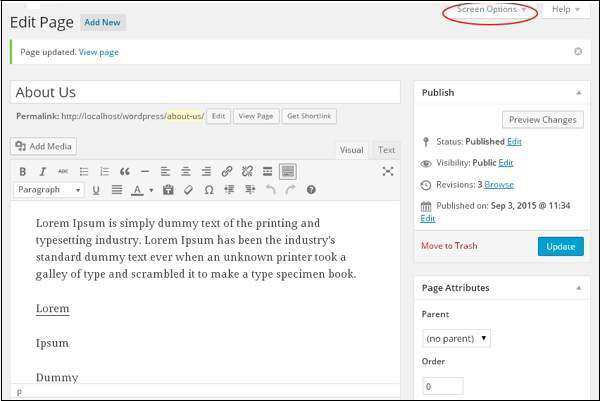
 Step (3) − To add a comment on this page, click on Screen options present at the top right hand corner.
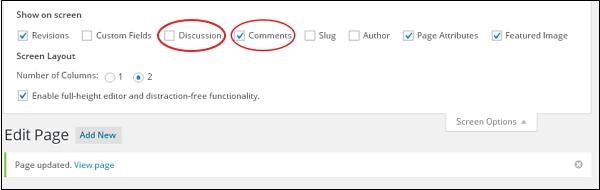
 Step (4) − The dropdown list of Screen Option gets displayed. Check the Discussion and Comments box as shown in the following screen.
 Step (5) − You can now view the Discussion and Comments box at the bottom of your page.
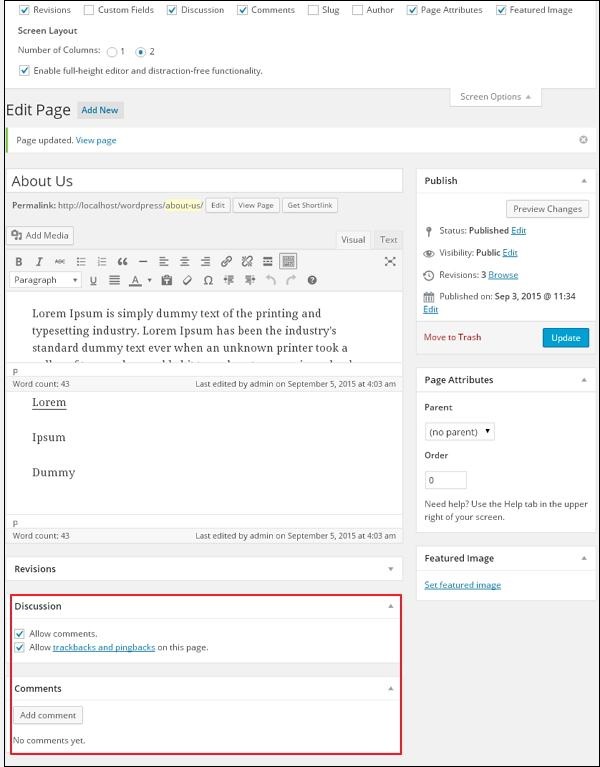 In the Discussion section, there are two options present −
Step (6) − Click on Update button after adding the comment box.
Following are the steps to add comments to your blog posts.
Step (1) − Click on Pages → All Pages in WordPress.
Step (2) − The list of pages created in WordPress will get
displayed as seen in the following screen. Select any of the pages you
want to add comments to. Here, we are going to add comment in About Us page. Click on About Us.
Step (3) − To add a comment on this page, click on Screen options present at the top right hand corner.
Step (4) − The dropdown list of Screen Option gets displayed. Check the Discussion and Comments box as shown in the following screen.
Step (5) − You can now view the Discussion and Comments box at the bottom of your page.
In the Discussion section, there are two options present −- Allow Comments − Allows visitors to comment on your blog posts and pages.
- Allow trackbacks and pingbacks on this page − Allows visitors to give pings and trackbacks.
Step (6) − Click on Update button after adding the comment box.


No comments:
Post a Comment