
In this chapter, we will study about how to Add Categories in
WordPress. Category is used to indicate sections of your site and group
related posts. It sorts the group content into different sections. It is
a very convenient way to organize the posts.
To access the Category section, follows the mentioned steps −
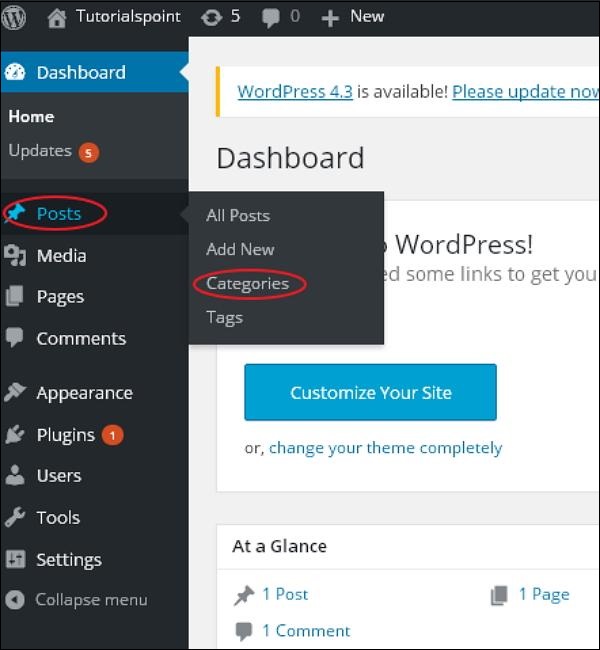
Step (1) − Click on Posts → Categories option in WordPress.
 Step (2) − The Categories page is displayed as shown in the following screenshot.
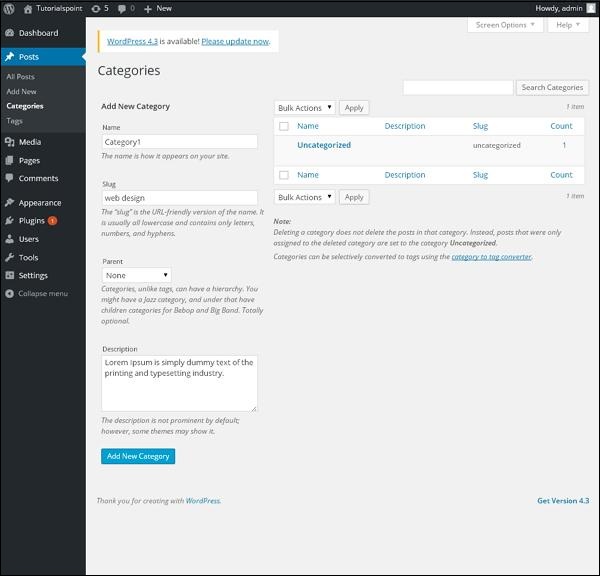 Following are the details of the fields on Categories.
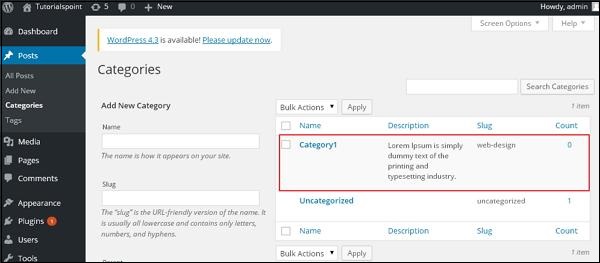
Step (4) − After clicking on Add New Category, the new created category will get displayed on the right side of the page as shown in the following screen.
To access the Category section, follows the mentioned steps −
Step (1) − Click on Posts → Categories option in WordPress.
Step (2) − The Categories page is displayed as shown in the following screenshot.
Following are the details of the fields on Categories.- Name − Enter the unique name of categories.
- Slug − A word chosen to describe your post. It is specified in the tags URL.
- Parent − By selecting the parent category from dropdown, you can set the particular category as sub-category or can keep it as None.
- Description − Add brief description of your category. It is optional.
Step (4) − After clicking on Add New Category, the new created category will get displayed on the right side of the page as shown in the following screen.


No comments:
Post a Comment