
You can convert a presentation to an image file. The following program shows how to go about it.
Given below is the snapshot of the image created at the specified location.
import java.io.File;
import java.io.FileInputStream;
import java.io.FileOutputStream;
import java.io.IOException;

import org.apache.poi.xslf.usermodel.XMLSlideShow;
import org.apache.poi.xslf.usermodel.XSLFSlide;

public class PpttoPNG {

   public static void main(String args[]) throws IOException{

      //creating an empty presentation
      File file=new File("addingimage.pptx");
      XMLSlideShow ppt = new XMLSlideShow(new FileInputStream(file));

      //getting the dimensions and size of the slide
      Dimension pgsize = ppt.getPageSize();
      XSLFSlide[] slide = ppt.getSlides();

      for (int i = 0; i < slide.length; i++) {
         BufferedImage img = new BufferedImage(pgsize.width, pgsize.height,BufferedImage.TYPE_INT_RGB);
         Graphics2D graphics = img.createGraphics();

         //clear the drawing area
         graphics.setPaint(Color.white);
         graphics.fill(new Rectangle2D.Float(0, 0, pgsize.width, pgsize.height));

         //render
         slide[i].draw(graphics);
      }

      //creating an image file as output
      FileOutputStream out = new FileOutputStream("ppt_image.png");
      javax.imageio.ImageIO.write(img, "png", out);
      ppt.write(out);

      System.out.println("Image successfully created");
      out.close();
   }
}
Save the above Java code as PpttoPNG.java, and then compile and execute it from the command prompt as follows:
$javac PpttoPNG.java
$java PpttoPNG
It will compile and execute to generate the following output:
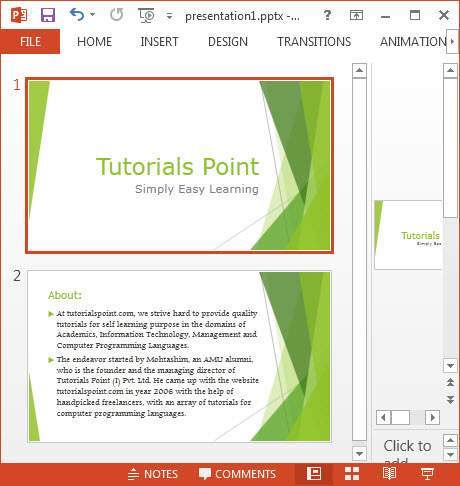
Image created successfullyThe following snapshot shows the presentation that is given as input:
Given below is the snapshot of the image created at the specified location.


No comments:
Post a Comment