
If you have downloaded and installed Eclipse already, you have very
little to do to get started. Eclipse comes pre bundled with the Ant
plugin, ready to use.
Follow the simple steps, to integrate Ant into Eclipse.
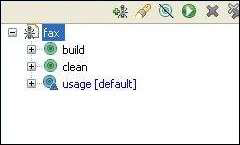 Clicking on the targets, build / clean / usage will run Ant with the target.
Clicking "fax" will execute the default target - usage.
The Ant Eclipse plugin also comes with a good editor for editing build.xml files. The editor is aware of the build.xml schema and can assist you with code completion.
To use the Ant editor, right click your build.xml (from the Project Explorer) and select Open with > Ant Editor. The Ant editor should look something similar to:
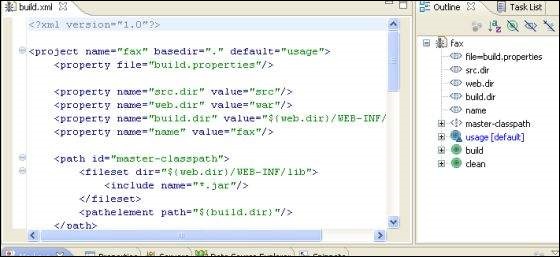 The Ant editor lists the targets on the right hand side. The target
list serves as a bookmark that allows you to jump straight into editing a
particular target.
The Ant editor lists the targets on the right hand side. The target
list serves as a bookmark that allows you to jump straight into editing a
particular target.
Follow the simple steps, to integrate Ant into Eclipse.
- Make sure that the build.xml is a part of your java project, and does not reside at a location that is external to the project.
- Enable Ant View by following Window > Show View > Other > Ant > Ant.
- Open Project Explorer, drag the build.xml into the Ant View.
Clicking on the targets, build / clean / usage will run Ant with the target.Clicking "fax" will execute the default target - usage.
The Ant Eclipse plugin also comes with a good editor for editing build.xml files. The editor is aware of the build.xml schema and can assist you with code completion.
To use the Ant editor, right click your build.xml (from the Project Explorer) and select Open with > Ant Editor. The Ant editor should look something similar to:
The Ant editor lists the targets on the right hand side. The target
list serves as a bookmark that allows you to jump straight into editing a
particular target.

No comments:
Post a Comment