
The text in a presentation can be formatted using the methods of the XSLFTextRun class. For that, you have to create an XSLFTextRun class object by selecting one of the slide layouts as shown below:
//create the empty presentation
XMLSlideShow ppt = new XMLSlideShow();

//getting the slide master object
XSLFSlideMaster slideMaster = ppt.getSlideMasters()[0];

//select a layout from specified list
XSLFSlideLayout slidelayout = slideMaster.getLayout(SlideLayout.TITLE_AND_CONTENT);

//creating a slide with title and content layout
XSLFSlide slide = ppt.createSlide(slidelayout);

//selection of title place holder
XSLFTextShape body = slide.getPlaceholder(1);

//clear the existing text in the slide
body.clearText();

//adding new paragraph
XSLFTextParagraph paragraph=body.addNewTextParagraph();

//creating text run object
XSLFTextRun run = paragraph.addNewTextRun();
You can set the font size of the text in the presentation using setFontSize().
run.setFontColor(java.awt.Color.red);
run.setFontSize(24);
The following code snippet shows how to apply different formatting styles (bold, italic, underline, strikeout) to the text in a presentation.
//change the text into bold format
run.setBold(true);

//change the text it to italic format
run.setItalic(true)

// strike through the text
run.setStrikethrough(true);

//underline the text
run.setUnderline(true);
To have line breaks between paragraphs, use addLineBreak() of the XSLFTextParagraph class as shown below:
paragraph.addLineBreak();Given below is the complete program to format the text using all the above methods:
import java.io.FileOutputStream;
import java.io.IOException;

import org.apache.poi.xslf.usermodel.SlideLayout;
import org.apache.poi.xslf.usermodel.XMLSlideShow;
import org.apache.poi.xslf.usermodel.XSLFSlide;
import org.apache.poi.xslf.usermodel.XSLFSlideLayout;
import org.apache.poi.xslf.usermodel.XSLFSlideMaster;
import org.apache.poi.xslf.usermodel.XSLFTextParagraph;
import org.apache.poi.xslf.usermodel.XSLFTextRun;
import org.apache.poi.xslf.usermodel.XSLFTextShape;

public class TextFormating {

   public static void main(String args[]) throws IOException{

      //creating an empty presentation
      XMLSlideShow ppt = new XMLSlideShow();

      //getting the slide master object
      XSLFSlideMaster slideMaster = ppt.getSlideMasters()[0];

      //select a layout from specified list
      XSLFSlideLayout slidelayout = slideMaster.getLayout(SlideLayout.TITLE_AND_CONTENT);

      //creating a slide with title and content layout
      XSLFSlide slide = ppt.createSlide(slidelayout);

      //selection of title place holder
      XSLFTextShape body = slide.getPlaceholder(1);

      //clear the existing text in the slide
      body.clearText();

      //adding new paragraph
      XSLFTextParagraph paragraph=body.addNewTextParagraph();

   //formatting line 1

      XSLFTextRun run1 = paragraph.addNewTextRun();
      run1.setText("This is a colored line");

      //setting color to the text
      run1.setFontColor(java.awt.Color.red);

      //setting font size to the text
      run1.setFontSize(24);

      //moving to the next line
      paragraph.addLineBreak();

   //formatting line 2

      XSLFTextRun run2 = paragraph.addNewTextRun();
      run2.setText("This is a bold line");
      run2.setFontColor(java.awt.Color.CYAN);

      //making the text bold
      run2.setBold(true);
      paragraph.addLineBreak();

   //formatting line 3

      XSLFTextRun run3 = paragraph.addNewTextRun();
      run3.setText(" This is a striked line");
      run3.setFontSize(12);

      //making the text italic
      run3.setItalic(true);

      //strike through the text
      run3.setStrikethrough(true);
      paragraph.addLineBreak();

   //formatting line 4

      XSLFTextRun run4 = paragraph.addNewTextRun();
      run4.setText(" This an underlined line");
      run4.setUnderline(true);

      //underlining the text
      paragraph.addLineBreak();

      //creating a file object
      File file=new File(“TextFormat.pptx”);
      FileOutputStream out = new FileOutputStream(file);

      //saving the changes to a file
      ppt.write(out);
      out.close();
   }
}
Save the above code as TextFormating.java, and then compile and execute it from the command prompt as follows:
$javac TextFormating.java
$java TextFormating
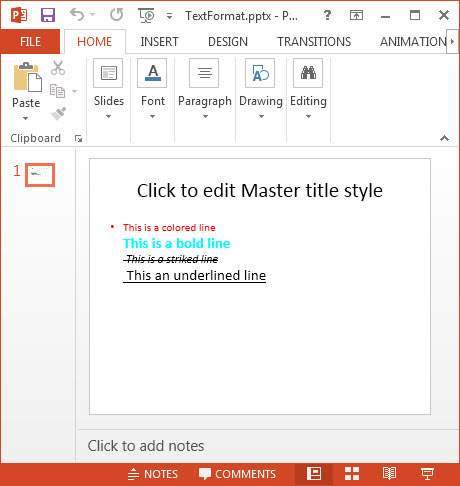
It will compile and execute to generate the following output:
Formatting completed successfullyThe slide with formatted text appears as follows:


No comments:
Post a Comment