
To create a simple JSF application, we'll use maven-archetype-webapp
plugin. In example below, We'll create a maven based web application
project in C:\JSF folder.
 Using above example, we can understand following key concepts
Server name (localhost) and port (8080) may vary as per your tomcat configuration.
Create Project
Let's open command console, go the C:\ > JSF directory and execute the following mvn command.C:\JSF>mvn archetype:create -DgroupId=com.tutorialspoint.test -DartifactId=helloworld -DarchetypeArtifactId=maven-archetype-webappMaven will start processing and will create the complete java web application project structure.
[INFO] Scanning for projects...
[INFO] Searching repository for plugin with prefix: 'archetype'.
[INFO] -------------------------------------------------------------
[INFO] Building Maven Default Project
[INFO]    task-segment: [archetype:create] (aggregator-style)
[INFO] -------------------------------------------------------------
[INFO] [archetype:create {execution: default-cli}]
[INFO] Defaulting package to group ID: com.tutorialspoint.test
[INFO] artifact org.apache.maven.archetypes:maven-archetype-webapp:
checking for updates from central
[INFO] -------------------------------------------------------------
[INFO] Using following parameters for creating project
from Old (1.x) Archetype: maven-archetype-webapp:RELEASE
[INFO] -------------------------------------------------------------
[INFO] Parameter: groupId, Value: com.tutorialspoint.test
[INFO] Parameter: packageName, Value: com.tutorialspoint.test
[INFO] Parameter: package, Value: com.tutorialspoint.test
[INFO] Parameter: artifactId, Value: helloworld
[INFO] Parameter: basedir, Value: C:\JSF
[INFO] Parameter: version, Value: 1.0-SNAPSHOT
[INFO] project created from Old (1.x) Archetype in dir:
C:\JSF\helloworld
[INFO] -------------------------------------------------------------
[INFO] BUILD SUCCESSFUL
[INFO] -------------------------------------------------------------
[INFO] Total time: 7 seconds
[INFO] Finished at: Mon Nov 05 16:05:04 IST 2012
[INFO] Final Memory: 12M/84M
[INFO] -------------------------------------------------------------
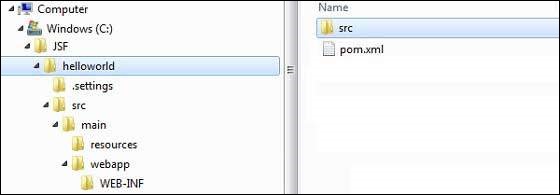
Now go to C:/JSF directory. You'll see a java web application project
created named helloworld (as specified in artifactId). Maven uses a
standard directory layout as shown below:
Using above example, we can understand following key concepts| Folder Structure | Description |
|---|---|
| helloworld | contains src folder and pom.xml |
| src/main/wepapp | contains WEB-INF folder and index.jsp page |
| src/main/resources | it contains images/properties files (In above example, we need to create this structure manually). |
Add JSF capability to Project
Add the JSF dependencies as shown below.<dependencies> <dependency> <groupId>com.sun.faces</groupId> <artifactId>jsf-api</artifactId> <version>2.1.7</version> </dependency> <dependency> <groupId>com.sun.faces</groupId> <artifactId>jsf-impl</artifactId> <version>2.1.7</version> </dependency> </dependencies>
Complete POM.xml
<project xmlns="http://maven.apache.org/POM/4.0.0"
   xmlns:xsi="http://www.w3.org/2001/XMLSchema-instance"
   xsi:schemaLocation="http://maven.apache.org/POM/4.0.0
   http://maven.apache.org/maven-v4_0_0.xsd">

   <modelVersion>4.0.0</modelVersion>
   <groupId>com.tutorialspoint.test</groupId>
   <artifactId>helloworld</artifactId>
   <packaging>war</packaging>
   <version>1.0-SNAPSHOT</version>
   <name>helloworld Maven Webapp</name>
   <url>http://maven.apache.org</url>

   <dependencies>
      <dependency>
         <groupId>junit</groupId>
         <artifactId>junit</artifactId>
         <version>3.8.1</version>
         <scope>test</scope>
      </dependency>

      <dependency>
         <groupId>com.sun.faces</groupId>
         <artifactId>jsf-api</artifactId>
         <version>2.1.7</version>
      </dependency>

      <dependency>
         <groupId>com.sun.faces</groupId>
         <artifactId>jsf-impl</artifactId>
         <version>2.1.7</version>
      </dependency>

   </dependencies>

   <build>
      <finalName>helloworld</finalName>

      <plugins>
         <plugin>
            <groupId>org.apache.maven.plugins</groupId>
            <artifactId>maven-compiler-plugin</artifactId>
            <version>2.3.1</version>

            <configuration>
               <source>1.6</source>
               <target>1.6</target>
            </configuration>

         </plugin>

      </plugins>

   </build>

</project>
Prepare Eclipse project
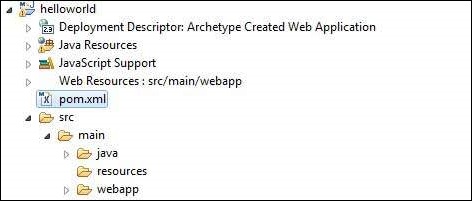
Let's open command console, go the C:\ > JSF > helloworld directory and execute the following mvn command.C:\JSF\helloworld>mvn eclipse:eclipse -Dwtpversion=2.0Maven will start processing and will create the eclipse ready project and will add wtp capability.
Downloading: http://repo.maven.apache.org/org/apache/maven/plugins/
maven-compiler-plugin/2.3.1/maven-compiler-plugin-2.3.1.pom
5K downloaded  (maven-compiler-plugin-2.3.1.pom)
Downloading: http://repo.maven.apache.org/org/apache/maven/plugins/
maven-compiler-plugin/2.3.1/maven-compiler-plugin-2.3.1.jar
29K downloaded  (maven-compiler-plugin-2.3.1.jar)
[INFO] Searching repository for plugin with prefix: 'eclipse'.
[INFO] ------------------------------------------------------------
[INFO] Building helloworld Maven Webapp
[INFO]    task-segment: [eclipse:eclipse]
[INFO] ------------------------------------------------------------
[INFO] Preparing eclipse:eclipse
[INFO] No goals needed for project - skipping
[INFO] [eclipse:eclipse {execution: default-cli}]
[INFO] Adding support for WTP version 2.0.
[INFO] Using Eclipse Workspace: null
[INFO] Adding default classpath container: org.eclipse.jdt.
launching.JRE_CONTAINER
Downloading: http://repo.maven.apache.org/
com/sun/faces/jsf-api/2.1.7/jsf-api-2.1.7.pom
12K downloaded  (jsf-api-2.1.7.pom)
Downloading: http://repo.maven.apache.org/
com/sun/faces/jsf-impl/2.1.7/jsf-impl-2.1.7.pom
10K downloaded  (jsf-impl-2.1.7.pom)
Downloading: http://repo.maven.apache.org/
com/sun/faces/jsf-api/2.1.7/jsf-api-2.1.7.jar
619K downloaded  (jsf-api-2.1.7.jar)
Downloading: http://repo.maven.apache.org/
com/sun/faces/jsf-impl/2.1.7/jsf-impl-2.1.7.jar
1916K downloaded  (jsf-impl-2.1.7.jar)
[INFO] Wrote settings to C:\JSF\helloworld\.settings\
org.eclipse.jdt.core.prefs
[INFO] Wrote Eclipse project for "helloworld" to C:\JSF\helloworld.
[INFO]
[INFO] -----------------------------------------------------------
[INFO] BUILD SUCCESSFUL
[INFO] -----------------------------------------------------------
[INFO] Total time: 6 minutes 7 seconds
[INFO] Finished at: Mon Nov 05 16:16:25 IST 2012
[INFO] Final Memory: 10M/89M
[INFO] -----------------------------------------------------------
Import project in Eclipse
- Now import project in eclipse using Import wizard
- Go to File > Import... > Existing project into workspace
- Select root directory to helloworld
- Keep Copy projects into workspace to be checked.
- Click Finish button.
- Eclipse will import and copy the project in its workspace C:\ > Projects > Data > WorkSpace
Configure Faces Servlet in web.xml
Locate web.xml in webapp > WEB-INF folder and update it as shown below.<?xml version="1.0" encoding="UTF-8"?> <web-app xmlns:xsi="http://www.w3.org/2001/XMLSchema-instance" xmlns="http://java.sun.com/xml/ns/javaee" xmlns:web="http://java.sun.com/xml/ns/javaee/web-app_2_5.xsd" xsi:schemaLocation="http://java.sun.com/xml/ns/javaee http://java.sun.com/xml/ns/javaee/web-app_2_5.xsd" id="WebApp_ID" version="2.5"> <welcome-file-list> <welcome-file>faces/home.xhtml</welcome-file> </welcome-file-list> <!-- FacesServlet is main servlet responsible to handle all request. It acts as central controller. This servlet initializes the JSF components before the JSP is displayed. --> <servlet> <servlet-name>Faces Servlet</servlet-name> <servlet-class>javax.faces.webapp.FacesServlet</servlet-class> <load-on-startup>1</load-on-startup> </servlet> <servlet-mapping> <servlet-name>Faces Servlet</servlet-name> <url-pattern>/faces/*</url-pattern> </servlet-mapping> <servlet-mapping> <servlet-name>Faces Servlet</servlet-name> <url-pattern>*.jsf</url-pattern> </servlet-mapping> <servlet-mapping> <servlet-name>Faces Servlet</servlet-name> <url-pattern>*.faces</url-pattern> </servlet-mapping> <servlet-mapping> <servlet-name>Faces Servlet</servlet-name> <url-pattern>*.xhtml</url-pattern> </servlet-mapping> </web-app>
Create a Managed Bean
Create a package structure under src > main > java as com > tutorialspoint > test. Create HelloWorld.java class in this package. Update the code of HelloWorld.java as shown below.package com.tutorialspoint.test; import javax.faces.bean.ManagedBean; @ManagedBean(name = "helloWorld", eager = true) public class HelloWorld { public HelloWorld() { System.out.println("HelloWorld started!"); } public String getMessage() { return "Hello World!"; } }
Create a JSF page
Create a page home.xhtml under webapp folder. Update the code of home.xhtml as shown below.<!DOCTYPE html PUBLIC "-//W3C//DTD XHTML 1.0 Transitional//EN" "http://www.w3.org/TR/xhtml1/DTD/xhtml1-transitional.dtd"> <html xmlns="http://www.w3.org/1999/xhtml"> <head> <title>JSF Tutorial!</title> </head> <body> #{helloWorld.getMessage()} </body> </html>
Build the project
- Select helloworld project in eclipse
- Use Run As wizard
- Select Run As > Maven package
- Maven will start building the project and will create helloworld.war under C:\ > Projects > Data > WorkSpace > helloworld > target folder
[INFO] Scanning for projects...
[INFO] -----------------------------------------------------
[INFO] Building helloworld Maven Webapp
[INFO]
[INFO] Id: com.tutorialspoint.test:helloworld:war:1.0-SNAPSHOT
[INFO] task-segment: [package]
[INFO] -----------------------------------------------------
[INFO] [resources:resources]
[INFO] Using default encoding to copy filtered resources.
[INFO] [compiler:compile]
[INFO] Nothing to compile - all classes are up to date
[INFO] [resources:testResources]
[INFO] Using default encoding to copy filtered resources.
[INFO] [compiler:testCompile]
[INFO] No sources to compile
[INFO] [surefire:test]
[INFO] Surefire report directory:
C:\Projects\Data\WorkSpace\helloworld\target\surefire-reports

-------------------------------------------------------
 T E S T S
-------------------------------------------------------
There are no tests to run.

Results :

Tests run: 0, Failures: 0, Errors: 0, Skipped: 0

[INFO] [war:war]
[INFO] Packaging webapp
[INFO] Assembling webapp[helloworld] in
[C:\Projects\Data\WorkSpace\helloworld\target\helloworld]
[INFO] Processing war project
[INFO] Webapp assembled in[150 msecs]
[INFO] Building war:
C:\Projects\Data\WorkSpace\helloworld\target\helloworld.war
[INFO] ------------------------------------------------
[INFO] BUILD SUCCESSFUL
[INFO] ------------------------------------------------
[INFO] Total time: 3 seconds
[INFO] Finished at: Mon Nov 05 16:34:46 IST 2012
[INFO] Final Memory: 2M/15M
[INFO] ------------------------------------------------
Deploy WAR file
- Stop the tomcat server.
- Copy the helloworld.war file to tomcat installation directory > webapps folder.
- Start the tomcat server.
- Look inside webapps directory, there should be a folder helloworld got created.
- Now helloworld.war is successfully deployed in Tomcat Webserver root.
Run Application
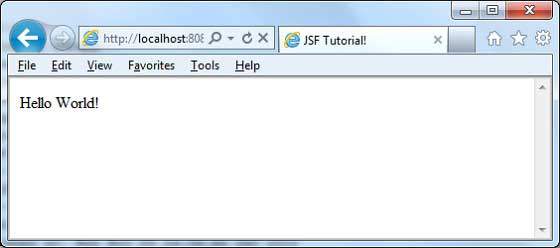
Enter a url in web browser: http://localhost:8080/helloworld/home.jsf to launch the applicationServer name (localhost) and port (8080) may vary as per your tomcat configuration.


No comments:
Post a Comment