
This article provides a step-by-step procedure of Gulp installation.
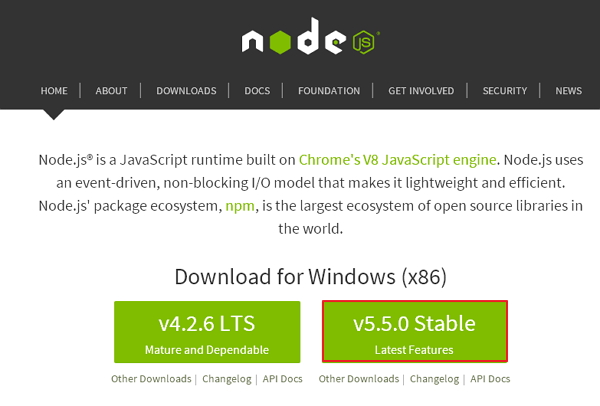 Download the latest features version of the zip file.
Step 2 − Next, run the setup to install the NodeJs on your computer.
Step 3 − You need to set environment variables.
 At the end, click the ‘Ok’ button.
System Variable
 Step 4 − Open the command prompt in your system and enter the following command. It will display the installed Node.js version.
 Step 5 − In the command prompt, enter the following command to
display the version of npm (Node.js package manager) which is used to
install modules. It will display the installed Node.js version.
Step 5 − In the command prompt, enter the following command to
display the version of npm (Node.js package manager) which is used to
install modules. It will display the installed Node.js version.
 Step 6 − In the command prompt, enter the following command to
install Gulp. Adding “-g” flag ensures that the Gulp is globally
available for any project.
Step 6 − In the command prompt, enter the following command to
install Gulp. Adding “-g” flag ensures that the Gulp is globally
available for any project.
 Step 7 − To verify that Gulp has been installed successfully, enter the following command to display the Gulp version.
System Requirements for Gulp
- Operating System − Cross-platform
- Browser Support − IE (Internet Explorer 8+), Firefox, Google Chrome, Safari, Opera
Installation of Gulp
Step 1 − We need Node.js to run Gulp examples. To download Node.js, open the https://nodejs.org/en/, you will see a screen as shown below −
Download the latest features version of the zip file.Step 2 − Next, run the setup to install the NodeJs on your computer.
Step 3 − You need to set environment variables.
Path User Variable
- Right-click on My Computer.
- Select Properties.
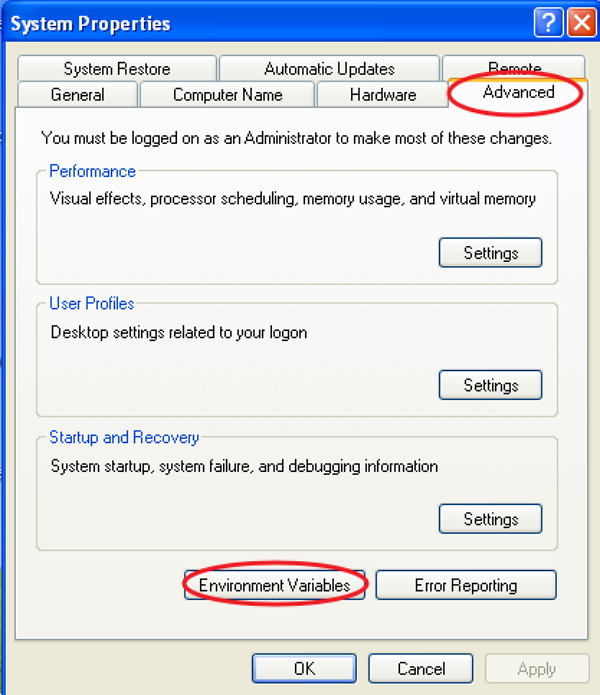
- Select Advanced tab and click ‘Environment Variables’.
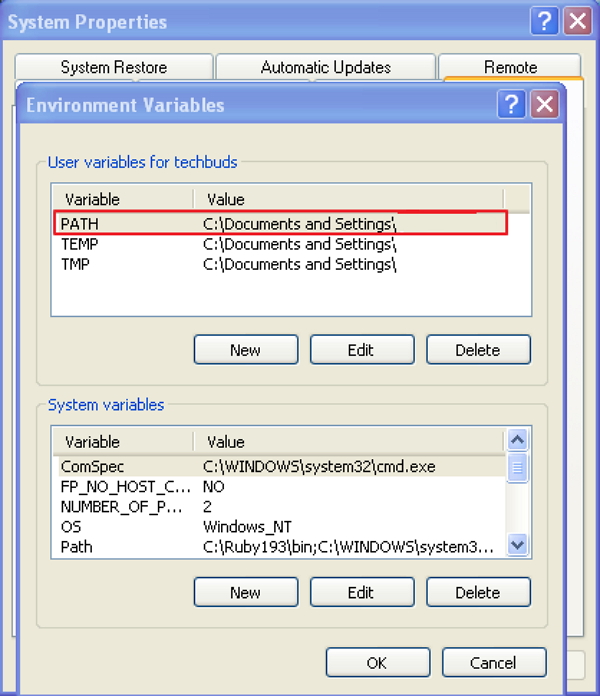
- Under Environment Variables window, double-click on the PATH as shown in the following screen.
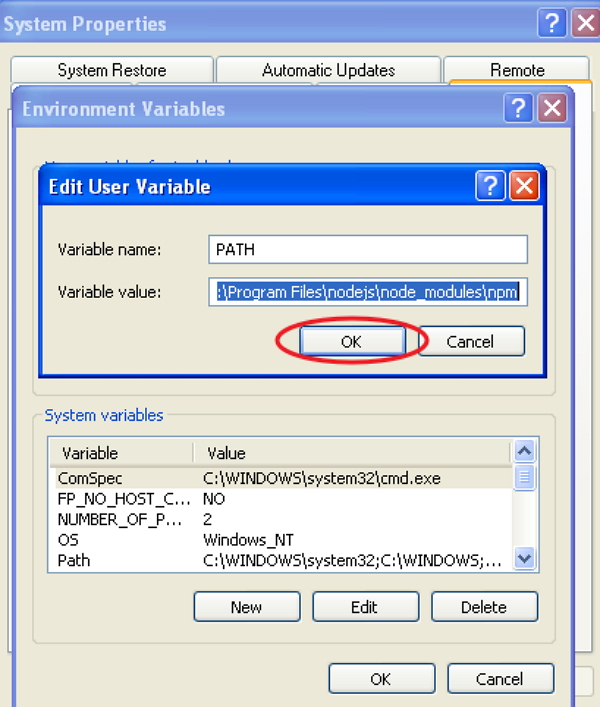
- You will get an Edit User Variable window as shown in the following screenshot. Add Node.js folder path in the Variable Value field as C:\Program Files\nodejs\node_modules\npm. If the path is set already for other files, then you need to put a semicolon (;) after that and add the Node.js path as shown in the following screenshot.
At the end, click the ‘Ok’ button.System Variable
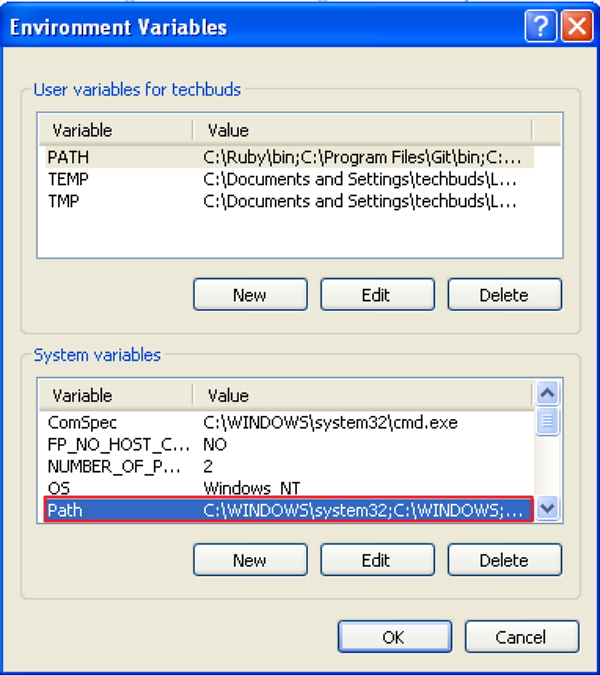
- Under System variables, double-click on Path as shown in the following screen.
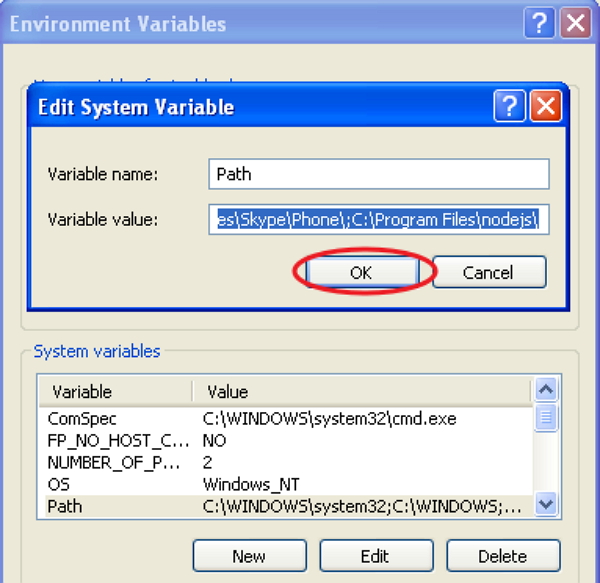
- You will get an Edit System Variable window as shown in the following screenshot. Add Node.js folder path in the Variable Value field as C:\Program Files\nodejs\ and click ‘Ok’ as shown in the following screenshot.
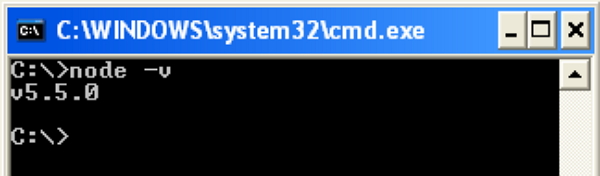
Step 4 − Open the command prompt in your system and enter the following command. It will display the installed Node.js version.node -v
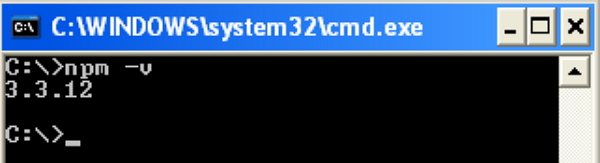
Step 5 − In the command prompt, enter the following command to
display the version of npm (Node.js package manager) which is used to
install modules. It will display the installed Node.js version.npm -v
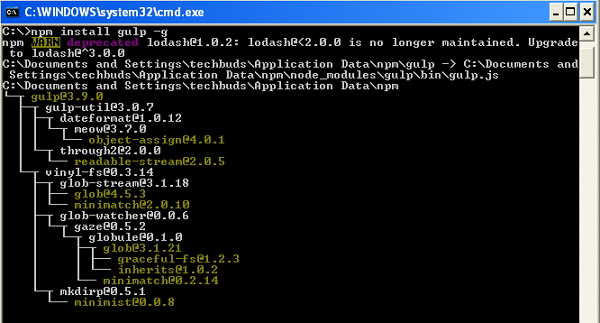
Step 6 − In the command prompt, enter the following command to
install Gulp. Adding “-g” flag ensures that the Gulp is globally
available for any project.npm install gulp -g
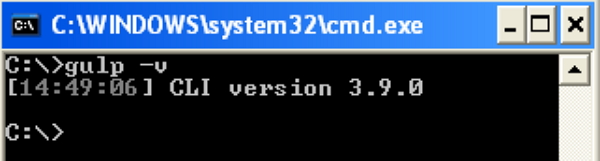
Step 7 − To verify that Gulp has been installed successfully, enter the following command to display the Gulp version.gulp -v


No comments:
Post a Comment