
The following steps will explain in detail how Rexx can be installed on a Windows system.
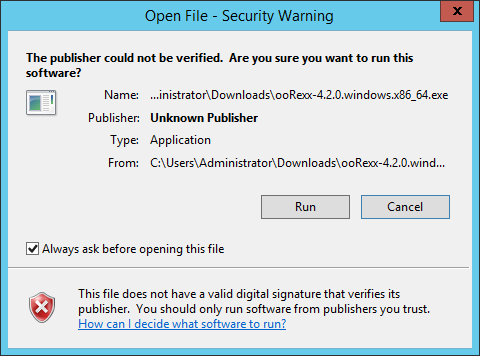
Step 1 − Launch the Installer downloaded in the earlier section. After the installer starts, click on the Run button.
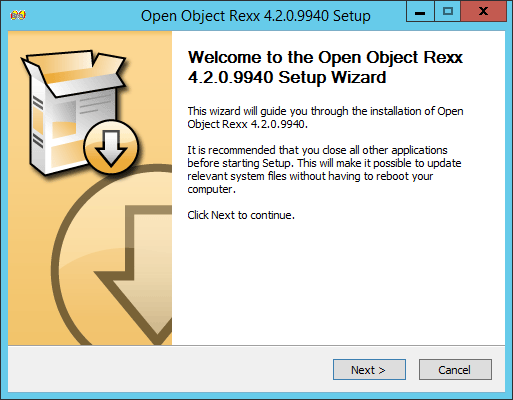
 Step 2 − Click the next button on the following screen to proceed with the installation.
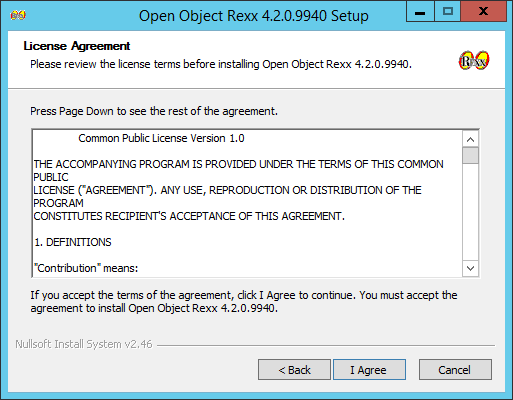
 Step 3 − Click on the I Agree button to proceed.
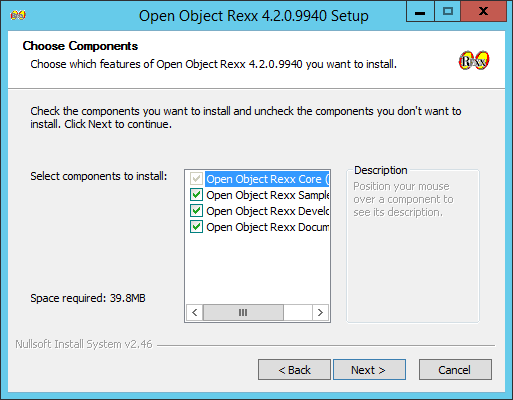
 Step 4 − Accept the default components and then click on the next button.
 Step 5 − Choose the installation location and click on the Next button.
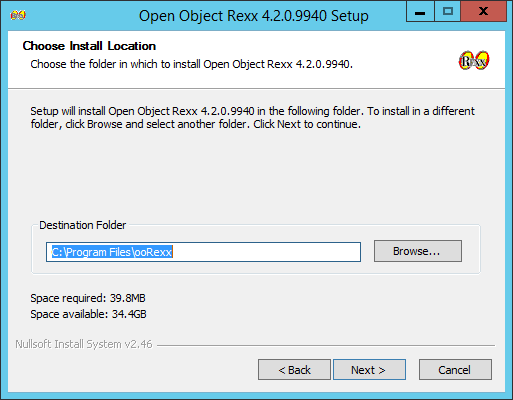 Step 6 − Accept the default processes which will be installed and click on the Next button.
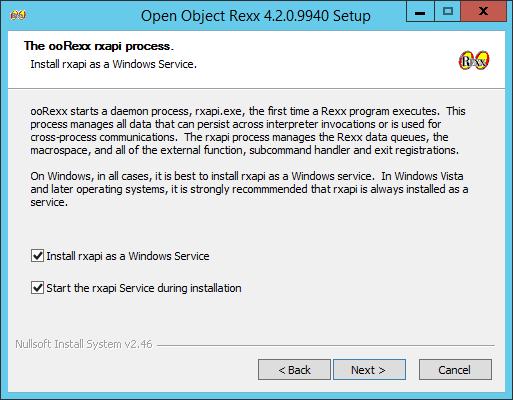 Step 7 − Choose the default file associations and click on the Next button.
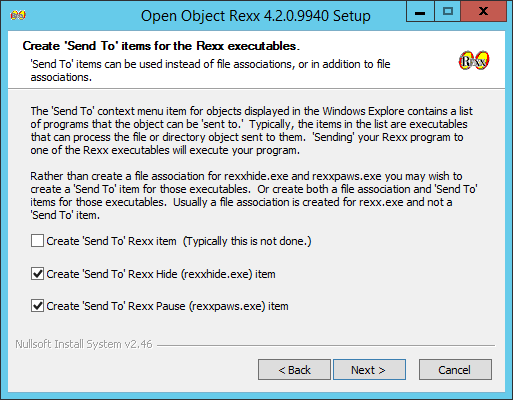
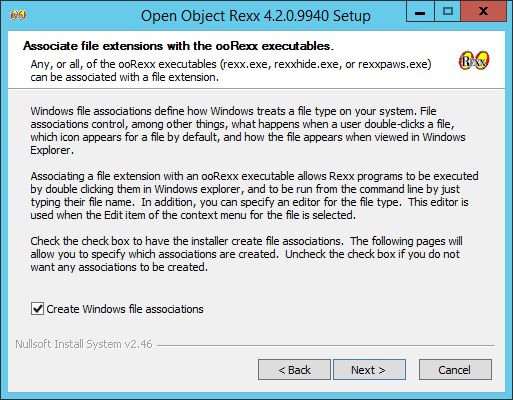 Step 8 − Click on the check boxes of send Rexx items to the
executables and then click on the Next button as shown in the following
screenshot.
Step 8 − Click on the check boxes of send Rexx items to the
executables and then click on the Next button as shown in the following
screenshot.
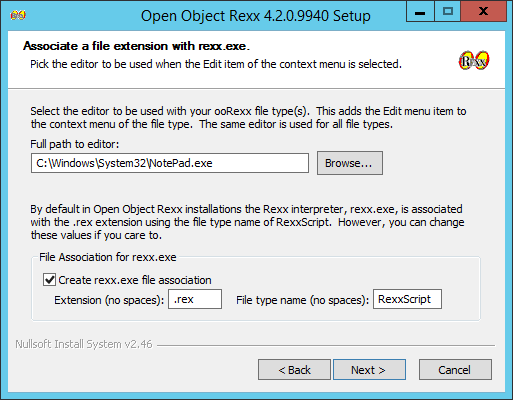
 Step 9 − In the next screen, choose the editor for working
with Rexx files. Keep the notepad as the default option. Also accept the
default extension for each Rexx file.
Step 9 − In the next screen, choose the editor for working
with Rexx files. Keep the notepad as the default option. Also accept the
default extension for each Rexx file.
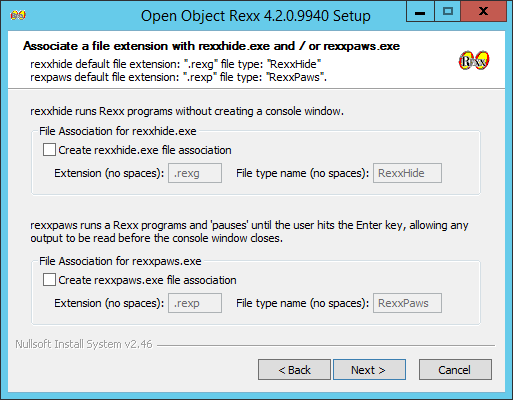
 Step 10 − Accept the default settings on the following screen
that comes up and click on the Next button to proceed further with the
installation.
Step 10 − Accept the default settings on the following screen
that comes up and click on the Next button to proceed further with the
installation.
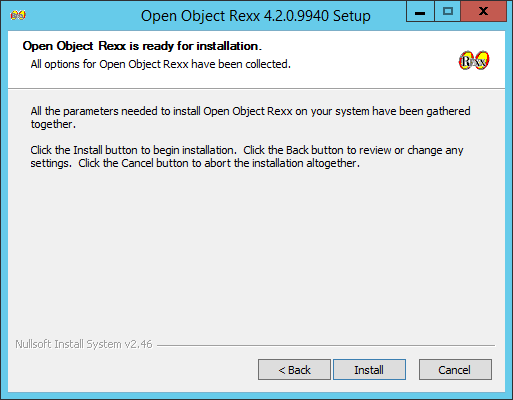
 Step 11 − Finally click on the Install button to proceed with the installation.
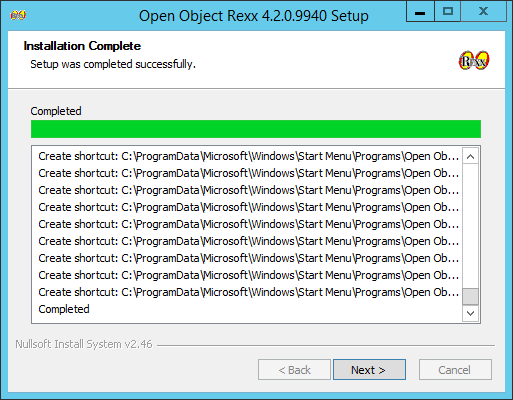
 Step 12 − Once the installation is complete, you need to click on the Next button to proceed further.
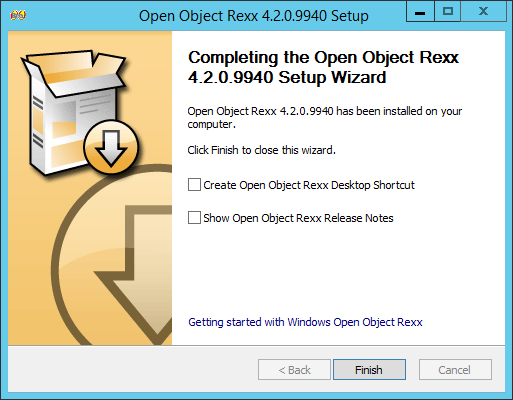
 Step 13 − Click on the Finish button to complete the installation.
Step 1 − Launch the Installer downloaded in the earlier section. After the installer starts, click on the Run button.
Step 2 − Click the next button on the following screen to proceed with the installation.
Step 3 − Click on the I Agree button to proceed.
Step 4 − Accept the default components and then click on the next button.
Step 5 − Choose the installation location and click on the Next button.
Step 6 − Accept the default processes which will be installed and click on the Next button.
Step 7 − Choose the default file associations and click on the Next button.
Step 8 − Click on the check boxes of send Rexx items to the
executables and then click on the Next button as shown in the following
screenshot.
Step 9 − In the next screen, choose the editor for working
with Rexx files. Keep the notepad as the default option. Also accept the
default extension for each Rexx file.
Step 10 − Accept the default settings on the following screen
that comes up and click on the Next button to proceed further with the
installation.
Step 11 − Finally click on the Install button to proceed with the installation.
Step 12 − Once the installation is complete, you need to click on the Next button to proceed further.
Step 13 − Click on the Finish button to complete the installation.

No comments:
Post a Comment