
In the previous chapter, we have seen how to add text to an existing
PDF document. In this chapter, we will discuss how to read text from an
existing PDF document.
Following are the steps to extract text from an existing PDF document.
 This example demonstrates how to read text from the above mentioned
PDF document. Here, we will create a Java program and load a PDF
document named new.pdf, which is saved in the path C:/PdfBox_Examples/. Save this code in a file with name ReadingText.java.
This example demonstrates how to read text from the above mentioned
PDF document. Here, we will create a Java program and load a PDF
document named new.pdf, which is saved in the path C:/PdfBox_Examples/. Save this code in a file with name ReadingText.java.
Extracting Text from an Existing PDF Document
Extracting text is one of the main features of the PDF box library. You can extract text using the getText() method of the PDFTextStripper class. This class extracts all the text from the given PDF document.Following are the steps to extract text from an existing PDF document.
Step 1: Loading an Existing PDF Document
Load an existing PDF document using the static method load() of the PDDocument class. This method accepts a file object as a parameter, since this is a static method you can invoke it using class name as shown below.File file = new File("path of the document")
PDDocument document = PDDocument.load(file);
Step 2: Instantiate the PDFTextStripper Class
The PDFTextStripper class provides methods to retrieve text from a PDF document therefore, instantiate this class as shown below.PDFTextStripper pdfStripper = new PDFTextStripper();
Step 3: Retrieving the Text
You can read/retrieve the contents of a page from the PDF document using the getText() method of the PDFTextStripper class. To this method you need to pass the document object as a parameter. This method retrieves the text in a given document and returns it in the form of a String object.String text = pdfStripper.getText(document);
Step 4: Closing the Document
Finally, close the document using the close() method of the PDDocument class as shown below.document.close();
Example
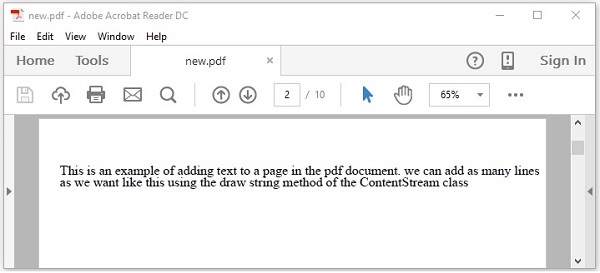
Suppose, we have a PDF document with some text in it as shown below.
This example demonstrates how to read text from the above mentioned
PDF document. Here, we will create a Java program and load a PDF
document named new.pdf, which is saved in the path C:/PdfBox_Examples/. Save this code in a file with name ReadingText.java.import java.io.File; import java.io.IOException; import org.apache.pdfbox.pdmodel.PDDocument; import org.apache.pdfbox.text.PDFTextStripper; public class ReadingText { public static void main(String args[]) throws IOException { //Loading an existing document File file = new File("C:/PdfBox_Examples/new.pdf"); PDDocument document = PDDocument.load(file); //Instantiate PDFTextStripper class PDFTextStripper pdfStripper = new PDFTextStripper(); //Retrieving text from PDF document String text = pdfStripper.getText(document); System.out.println(text); //Closing the document document.close(); } }Compile and execute the saved Java file from the command prompt using the following commands.
javac ReadingText.java
java ReadingText
Upon execution, the above program retrieves the text from the given PDF document and displays it as shown below.
This is an example of adding text to a page in the pdf document. we can add as many lines
as we want like this using the ShowText() method of the ContentStream class.


No comments:
Post a Comment