
In the previous chapter, we have seen how to extract text from an
existing PDF document. In this chapter, we will discuss how to insert
image to a PDF document.
Following are the steps to extract text from an existing PDF document.
We can create an object of this class using the method createFromFile(). To this method, we need to pass the path of the image which we want to add in the form of a string and the document object to which the image needs to be added.
 This example demonstrates how to add image to a blank page of the
above mentioned PDF document. Here, we will load the PDF document named sample.pdf and add image to it. Save this code in a file with name InsertingImage.java.
This example demonstrates how to add image to a blank page of the
above mentioned PDF document. Here, we will load the PDF document named sample.pdf and add image to it. Save this code in a file with name InsertingImage.java.
Inserting Image to a PDF Document
You can insert an image into a PDF document using the createFromFile() and drawImage() methods of the classes PDImageXObject and PDPageContentStream respectively.Following are the steps to extract text from an existing PDF document.
Step 1: Loading an Existing PDF Document
Load an existing PDF document using the static method load() of the PDDocument class. This method accepts a file object as a parameter, since this is a static method you can invoke it using class name as shown below.File file = new File("path of the document")
PDDocument doc = PDDocument.load(file);
Step 2: Retrieving a Page
Select a page in the PDF document and retrieve its page object using the getPage() method as shown below.PDPage page = doc.getPage(0);
Step 3: Creating PDImageXObject object
The class PDImageXObject in PDFBox library represents an image. It provides all the required methods to perform operations related to an image, such as, inserting an image, setting its height, setting its width etc.We can create an object of this class using the method createFromFile(). To this method, we need to pass the path of the image which we want to add in the form of a string and the document object to which the image needs to be added.
PDImageXObject pdImage = PDImageXObject.createFromFile("C:/logo.png", doc);
Step 4: Preparing the Content Stream
You can insert various kinds of data elements using the object of the class named PDPageContentStream. You need to pass the document object and the page object to the constructor of this class therefore, instantiate this class by passing these two objects created in the previous steps as shown below.PDPageContentStream contentStream = new PDPageContentStream(doc, page);
Step 5: Drawing the Image in the PDF Document
You can insert an image in the PDF document using the drawImage() method. To this method, you need to add the image object created in the above step and the required dimensions of the image (width and height) as shown below.contentstream.drawImage(pdImage, 70, 250);
Step 6: Closing the PDPageContentStream
Close the PDPageContentStream object using the close() method as shown below.contentstream.close();
Step 7: Saving the Document
After adding the required content, save the PDF document using the save() method of the PDDocument class as shown in the following code block.doc.save("Path");
Step 8: Closing the Document
Finally, close the document using the close() method of the PDDocument class as shown below.doc.close();
Example
Suppose we have a PDF document named sample.pdf, in the path C:/PdfBox_Examples/ with empty pages as shown below.
This example demonstrates how to add image to a blank page of the
above mentioned PDF document. Here, we will load the PDF document named sample.pdf and add image to it. Save this code in a file with name InsertingImage.java.import java.io.File; import org.apache.pdfbox.pdmodel.PDDocument; import org.apache.pdfbox.pdmodel.PDPage; import org.apache.pdfbox.pdmodel.PDPageContentStream; import org.apache.pdfbox.pdmodel.graphics.image.PDImageXObject; public class InsertingImage { public static void main(String args[]) throws Exception { //Loading an existing document File file = new File("C:/PdfBox_Examples/sample.pdf"); PDDocument doc = PDDocument.load(file); //Retrieving the page PDPage page = doc.getPage(0); //Creating PDImageXObject object PDImageXObject pdImage = PDImageXObject.createFromFile("C:/PdfBox_Examples/logo.png",doc); //creating the PDPageContentStream object PDPageContentStream contents = new PDPageContentStream(doc, page); //Drawing the image in the PDF document contents.drawImage(pdImage, 70, 250); System.out.println("Image inserted"); //Closing the PDPageContentStream object contents.close(); //Saving the document doc.save("C:/PdfBox_Examples/sample.pdf"); //Closing the document doc.close(); } }Compile and execute the saved Java file from the command prompt using the following commands.
javac InsertingImage.java
java InsertingImage
Upon execution, the above program inserts an image into the specified page of the given PDF document displaying the following message.
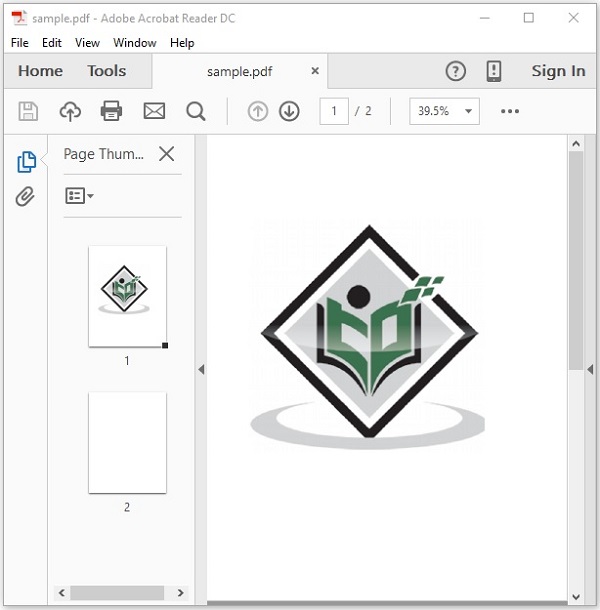
Image insertedIf you verify the document sample.pdf, you can observe that an image is inserted in it as shown below.


No comments:
Post a Comment