
Let us now understand how to create a PDF document using the PDFBox library.
Following are the steps to create an empty PDF document.
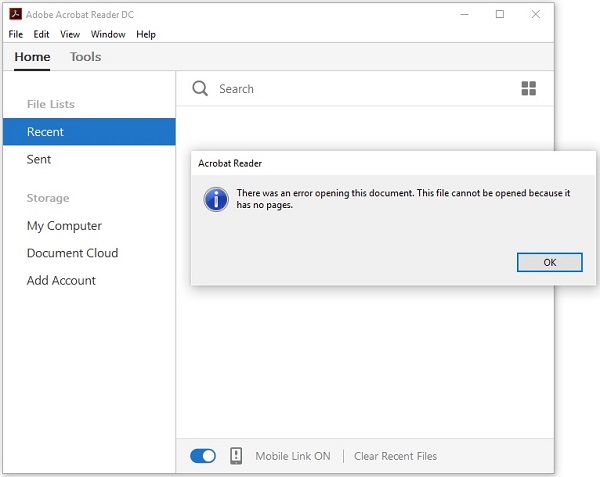
 Since this is an empty document, if you try to open this document,
this gives you a prompt displaying an error message as shown in the
following screenshot.
Since this is an empty document, if you try to open this document,
this gives you a prompt displaying an error message as shown in the
following screenshot.
Creating an Empty PDF Document
You can create an empty PDF Document by instantiating the PDDocument class. You can save the document in your desired location using the Save() method.Following are the steps to create an empty PDF document.
Step 1: Creating an Empty Document
The PDDocument class that belongs to the package org.apache.pdfbox.pdmodel, is an In-memory representation of the PDFDocument. Therefore, by instantiating this class, you can create an empty PDFDocument as shown in the following code block.PDDocument document = new PDDocument();
Step 2: Saving the Document
After creating the document, you need to save this document in the desired path, you can do so using the Save() method of the PDDocument class. This method accepts a string value, representing the path where you want to store the document, as a parameter. Following is the prototype of the save() method of the PDDocument class.document.save("Path");
Step 3: Closing the Document
When your task is completed, at the end, you need to close the PDDocument object using the close () method. Following is the prototype of the close() method of PDDocument class.document.close();
Example
This example demonstrates the creation of a PDF Document. Here, we will create a Java program to generate a PDF document named my_doc.pdf and save it in the path C:/PdfBox_Examples/. Save this code in a file with name Document_Creation.java.import java.io.IOException; import org.apache.pdfbox.pdmodel.PDDocument; public class Document_Creation { public static void main (String args[]) throws IOException { //Creating PDF document object PDDocument document = new PDDocument(); //Saving the document document.save("C:/PdfBox_Examples/my_doc.pdf"); System.out.println("PDF created"); //Closing the document document.close(); } }Compile and execute the saved Java file from the command prompt using the following commands.
javac Document_Creation.java
java Document_Creation
Upon execution, the above program creates a PDF document displaying the following message.
PDF created
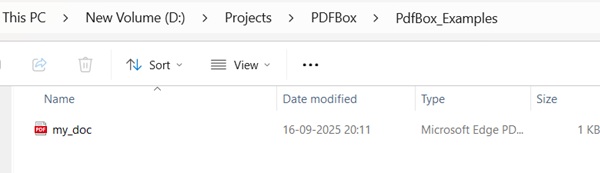
If you verify the specified path, you can find the created PDF document as shown below.
Since this is an empty document, if you try to open this document,
this gives you a prompt displaying an error message as shown in the
following screenshot.

No comments:
Post a Comment