
In the previous chapter, we have seen how to create a PDF document.
After creating a PDF document, you need to add pages to it. Let us now
understand how to add pages in a PDF document.
Following are the steps to create an empty document and add pages to it.
Therefore, add the blank page created in the previous step to the PDDocument object as shown in the following code block.
Adding Pages to a PDF Document
You can create an empty page by instantiating the PDPage class and add it to the PDF document using the addPage() method of the PDDocument class.Following are the steps to create an empty document and add pages to it.
Step 1: Creating an Empty Document
Create an empty PDF document by instantiating the PDDocument class as shown below.PDDocument document = new PDDocument();
Step 2: Creating a Blank Page
The PDPage class represents a page in the PDF document therefore, you can create an empty page by instantiating this class as shown in the following code block.PDPage my_page = new PDPage();
Step 3: Adding Page to the Document
You can add a page to the PDF document using the addPage() method of the PDDocument class. To this method you need to pass the PDPage object as a parameter.Therefore, add the blank page created in the previous step to the PDDocument object as shown in the following code block.
document.addPage(my_page);In this way you can add as many pages as you want to a PDF document.
Step 4: Saving the Document
After adding all the pages, save the PDF document using the save() method of the PDDocument class as shown in the following code block.document.save("Path");
Step 5: Closing the Document
Finally close the document using the close() method of the PDDocument class as shown below.document.close();
Example
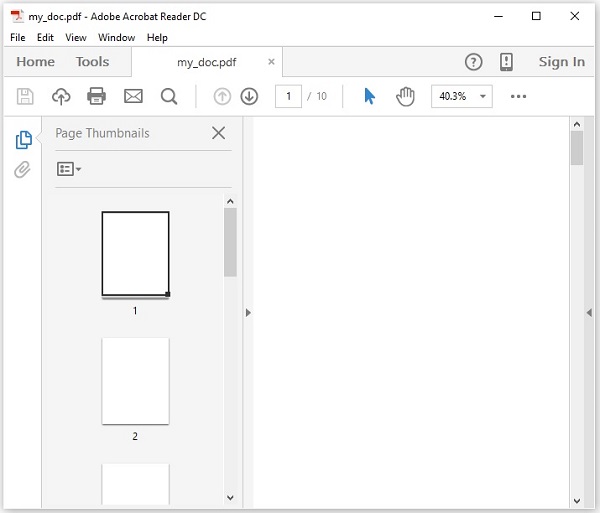
This example demonstrates how to create a PDF Document and add pages to it. Here we will create a PDF Document named my_doc.pdf and further add 10 blank pages to it, and save it in the path C:/PdfBox_Examples/. Save this code in a file with name Adding_pages.java.package document; import java.io.IOException; import org.apache.pdfbox.pdmodel.PDDocument; import org.apache.pdfbox.pdmodel.PDPage; public class Adding_Pages { public static void main(String args[]) throws IOException { //Creating PDF document object PDDocument document = new PDDocument(); for (int i=0; i<10; i++) { //Creating a blank page PDPage blankPage = new PDPage(); //Adding the blank page to the document document.addPage( blankPage ); } //Saving the document document.save("C:/PdfBox_Examples/my_doc.pdf"); System.out.println("PDF created"); //Closing the document document.close(); } }Compile and execute the saved Java file from the command prompt using the following commands −
javac Adding_pages.java
java Adding_pages
Upon execution, the above program creates a PDF document with blank pages displaying the following message −
PDF createdIf you verify the specified path, you can find the created PDF document as shown in the following screenshot.


No comments:
Post a Comment