
Writing a test in TestNG basically involves the following steps:
Create EmployeeDetails.java in C:\>TestNG_WORKSPACE, which is a POJO class.
- Write the business logic of your test and insert TestNG annotations in your code.
- Add the information about your test (e.g. the class name, the groups you wish to run, etc.) in a testng.xml file or in build.xml.
- Run TestNG.
Create EmployeeDetails.java in C:\>TestNG_WORKSPACE, which is a POJO class.
public class EmployeeDetails {

   private String name;
   private double monthlySalary;
   private int age;

   // @return the name

   public String getName() {
      return name;
   }

   // @param name the name to set

   public void setName(String name) {
      this.name = name;
   }

   // @return the monthlySalary

   public double getMonthlySalary() {
      return monthlySalary;
   }

   // @param monthlySalary the monthlySalary to set

   public void setMonthlySalary(double monthlySalary) {
      this.monthlySalary = monthlySalary;
   }

   // @return the age

   public int getAge() {
      return age;
   }

   // @param age the age to set

   public void setAge(int age) {
   this.age = age;
   }
}
EmployeeDetails class is used to.
- get/set the value of employee's name.
- get/set the value of employee's monthly salary.
- get/set the value of employee's age.
public class EmpBusinessLogic {

   // Calculate the yearly salary of employee
   public double calculateYearlySalary(EmployeeDetails employeeDetails){
      double yearlySalary = 0;
      yearlySalary = employeeDetails.getMonthlySalary() * 12;
      return yearlySalary;
   }

   // Calculate the appraisal amount of employee
   public double calculateAppraisal(EmployeeDetails employeeDetails){

      double appraisal = 0;

      if(employeeDetails.getMonthlySalary() < 10000){
         appraisal = 500;

      }else{
         appraisal = 1000;
      }

      return appraisal;
   }
}
EmpBusinessLogic class is used for calculating:
- the yearly salary of employee.
- the appraisal amount of employee.
import org.testng.Assert;
import org.testng.annotations.Test;

public class TestEmployeeDetails {
   EmpBusinessLogic empBusinessLogic = new EmpBusinessLogic();
   EmployeeDetails employee = new EmployeeDetails();

   @Test
   public void testCalculateAppriasal() {

      employee.setName("Rajeev");
      employee.setAge(25);
      employee.setMonthlySalary(8000);

      double appraisal = empBusinessLogic.calculateAppraisal(employee);
      Assert.assertEquals(500, appraisal, 0.0, "500");
   }

   // Test to check yearly salary
   @Test
   public void testCalculateYearlySalary() {

      employee.setName("Rajeev");
      employee.setAge(25);
      employee.setMonthlySalary(8000);

      double salary = empBusinessLogic.calculateYearlySalary(employee);
      Assert.assertEquals(96000, salary, 0.0, "8000");
   }
}
TestEmployeeDetails class is used for testing the methods of EmpBusinessLogic class. It does the following:
- Tests the yearly salary of the employee.
- Tests the appraisal amount of the employee.
<?xml version="1.0" encoding="UTF-8"?>
<!DOCTYPE suite SYSTEM "http://testng.org/testng-1.0.dtd" >

<suite name="Suite1">
  <test name="test1">
    <classes>
       <class name="TestEmployeeDetails"/>
    </classes>
  </test>
</suite>
Details of the above file are as follows:
- A suite is represented by one XML file. It can contain one or more tests and is defined by the <suite> tag.
- Tag <test> represents one test and can contain one or more TestNG classes.
- <class> tag represents a TestNG class. It is a Java class that contains at least one TestNG annotation. It can contain one or more test methods.
C:\TestNG_WORKSPACE>javac EmployeeDetails.java EmpBusinessLogic.java TestEmployeeDetails.javaNow TestNG with the following command:
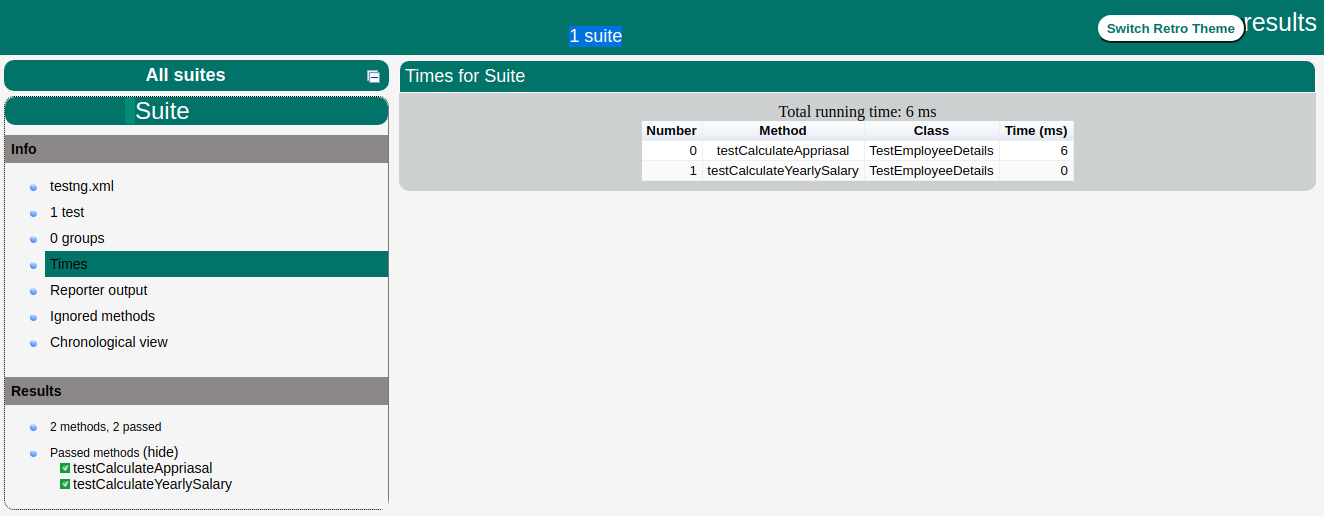
C:\TestNG_WORKSPACE>java -cp "C:\TestNG_WORKSPACE" org.testng.TestNG testng.xmlIf all has been done correctly, you should see the results of your tests in the console. Furthermore, TestNG creates a very nice HTML report in a folder called test-output that is automatically created in the current directory. If you open it and load index.html, you will see a page similar to the one in the image below:


No comments:
Post a Comment