
The following example show how to use Single Checkbox in forms using
Spring Web MVC framework. To start with it, let us have working Eclipse
IDE in place and follow the following steps to develop a Dynamic Form
based Web Application using Spring Web Framework:
User.java
Second service method addUser() will be called against a POST method on the HelloWeb/addUser URL. You will prepare your model object based on the submitted information. Finally a "users" view will be returned from the service method, which will result in rendering users.jsp
user.jsp
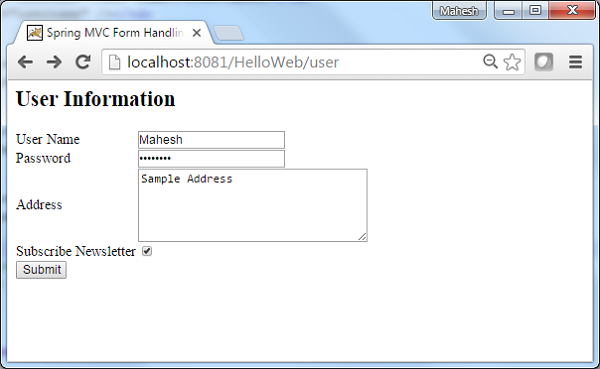
Now start your Tomcat server and make sure you are able to access other web pages from webapps folder using a standard browser. Now try a URL http://localhost:8080/HelloWeb/user and you should see the following result if everything is fine with your Spring Web Application:
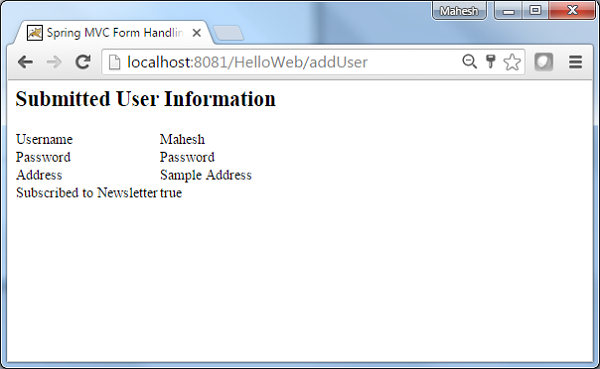
 After submitting required information click on submit button to
submit the form. You should see the following result if everything is
fine with your Spring Web Application:
After submitting required information click on submit button to
submit the form. You should see the following result if everything is
fine with your Spring Web Application:
| Step | Description |
|---|---|
| 1 | Create a project with a name HelloWeb under a package com.tutorialspoint as explained in the Spring MVC - Hello World Example chapter. |
| 2 | Create a Java classes User, UserController under the com.tutorialspoint package. |
| 3 | Create a view files user.jsp, users.jsp under jsp sub-folder. |
| 4 | The final step is to create the content of all the source and configuration files and export the application as explained below. |
package com.tutorialspoint;

public class User {

   private String username;
   private String password;
   private String address;
   private boolean receivePaper;

   public String getUsername() {
      return username;
   }
   public void setUsername(String username) {
      this.username = username;
   }

   public String getPassword() {
      return password;
   }
   public void setPassword(String password) {
      this.password = password;
   }
   public String getAddress() {
      return address;
   }
   public void setAddress(String address) {
      this.address = address;
   }
   public boolean isReceivePaper() {
      return receivePaper;
   }
   public void setReceivePaper(boolean receivePaper) {
      this.receivePaper = receivePaper;
   }
}
UserController.java
package com.tutorialspoint;

import org.springframework.stereotype.Controller;
import org.springframework.web.bind.annotation.ModelAttribute;
import org.springframework.web.bind.annotation.RequestMapping;
import org.springframework.web.bind.annotation.RequestMethod;
import org.springframework.web.servlet.ModelAndView;
import org.springframework.ui.ModelMap;

@Controller
public class UserController {

   @RequestMapping(value = "/user", method = RequestMethod.GET)
   public ModelAndView user() {
      return new ModelAndView("user", "command", new User());
   }

   @RequestMapping(value = "/addUser", method = RequestMethod.POST)
   public String addUser(@ModelAttribute("SpringWeb")User user,
      ModelMap model) {
      model.addAttribute("username", user.getUsername());
      model.addAttribute("password", user.getPassword());
      model.addAttribute("address", user.getAddress());
      model.addAttribute("receivePaper", user.isReceivePaper());
      return "users";
   }
}
Here the first service method user(), we have passed a blank User object in the ModelAndView object with name "command" because the spring framework expects an object with name "command" if you are using <form:form> tags in your JSP file. So when user() method is called it returns user.jsp view.
Second service method addUser() will be called against a POST method on the HelloWeb/addUser URL. You will prepare your model object based on the submitted information. Finally a "users" view will be returned from the service method, which will result in rendering users.jsp
user.jsp
<%@taglib uri="http://www.springframework.org/tags/form" prefix="form"%>
<html>
<head>
   <title>Spring MVC Form Handling</title>
</head>
<body>

<h2>User Information</h2>
<form:form method="POST" action="/HelloWeb/addUser">
   <table>
      <tr>
         <td><form:label path="username">User Name</form:label></td>
         <td><form:input path="username" /></td>
      </tr>
      <tr>
         <td><form:label path="password">Age</form:label></td>
         <td><form:password path="password" /></td>
      </tr>
      <tr>
         <td><form:label path="address">Address</form:label></td>
         <td><form:textarea path="address" rows="5" cols="30" /></td>
      </tr>
      <tr>
         <td><form:label path="receivePaper">Subscribe Newsletter</form:label></td>
         <td><form:checkbox path="receivePaper" /></td>
      </tr>
      <tr>
         <td colspan="2">
            <input type="submit" value="Submit"/>
         </td>
      </tr>
   </table>
</form:form>
</body>
</html>
Here We're using <form:checkbox /> tag to render a HTML checkbox box. For example
<form:checkbox path="receivePaper" />It will render following HTML content.
<input id="receivePaper1" name="receivePaper" type="checkbox" value="true"/>
<input type="hidden" name="_receivePaper" value="on"/>
users.jsp
<%@taglib uri="http://www.springframework.org/tags/form" prefix="form"%>
<html>
<head>
    <title>Spring MVC Form Handling</title>
</head>
<body>

<h2>Submitted User Information</h2>
   <table>
      <tr>
         <td>Username</td>
         <td>${username}</td>
      </tr>
      <tr>
         <td>Password</td>
         <td>${password}</td>
      </tr>
      <tr>
         <td>Address</td>
         <td>${address}</td>
      </tr>
      <tr>
         <td>Subscribed to Newsletter</td>
         <td>${receivePaper}</td>
      </tr>
   </table>
</body>
</html>
Once you are done with creating source and configuration files, export your application. Right click on your application and use Export > WAR File option and save your HelloWeb.war file in Tomcat's webapps folder.
Now start your Tomcat server and make sure you are able to access other web pages from webapps folder using a standard browser. Now try a URL http://localhost:8080/HelloWeb/user and you should see the following result if everything is fine with your Spring Web Application:
After submitting required information click on submit button to
submit the form. You should see the following result if everything is
fine with your Spring Web Application:

No comments:
Post a Comment